April 29, 2010
Firebug breaks on page errors whether set to break or not.
Ever since Firebug got a recent big upgrade, I've had problems with it stopping a page from loading whenever there is any javascript error. Since the web is riddled with javascript errors, this has meant a frustrating experience. It used to be easy to turn this behavior off, in the Script tab, but now there seemed to be no way to stop it from stopping.
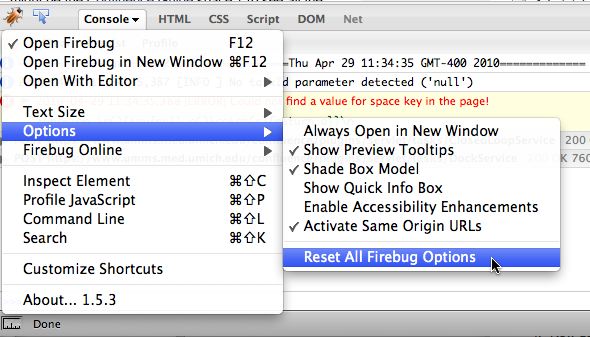
I'm still not sure of the cause, but this little fix seems to have corrected the problem:
From the Firebug menu, select Options > Reset all
April 28, 2010
Style Confluence with CSS using a back-door approach
I recently had the task of creating a new theme for a Confluence-based corporate wiki in time for a big launch date.
There were a few restrictions on how I could do this, including:
- There is no user access to the Space's Page Layout features, which means that any changes needed there must be sent to an administrator to be added to the site.
- There is no user access to the server, so editing stylesheets would have to be through the application or by giving them to the admin to upload. We could put assets on another server but sometimes this can cause security issues with browsers, coming from mixed security level domains. Similarly, every image to be used at the Space Page Layout level would have to be sent to an admin for upload.
- The Documentation theme was not available to us yet.
- ThemeBuilder was not available yet.
- And - it goes without saying - the schedule was tight.
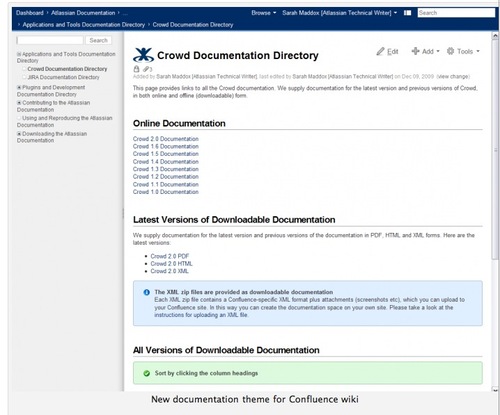
Our first challenge was to add a collapsible navigation tree on the left side of the page, similar to the Documentation theme does, but without using the Documentation theme, since we do not have that option yet.
Example of the Documentation Theme
We fell back on the original method of creating a left-navigation column layout, which requires the administrator to add an "includePage" macro to the Space's Page Layout section.
<table cellspacing="2" cellpadding="5"><tr><td valign="top" align="left" width="22%" bgcolor="#F9F9F9" class="noprint"><div class="tabletitle">Table of Contents</div><div class="spacetree"><div class="line alt1" style="margin-top: 0px !
April 21, 2010
Use SC Plugin for OS X to browse Subversion repositories in the Finder
If you need to browse source code repositories to get the latest build of some application (e.g. the JW Player), one of the easiest ways is to use the SC Plugin for OS X by Tigris.org.

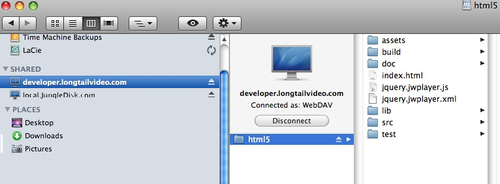
The SCPlugin is a free system extension that allows you to use the Finder's "Connect to Server" command to connect to the repository as if it were another drive.
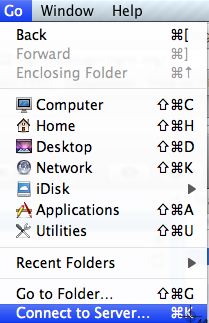
Just enter the address..
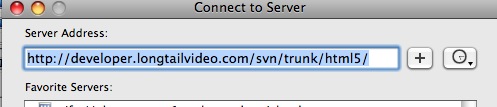
...and the repository is mounted on your desktop:
Umbraco installation error: The virtual path '/install/steps/welcome.ascx' maps to another application
After installing "Umbraco," you may get the following error:
The virtual path '/install/steps/welcome.ascx' maps to another application, which is not allowed.
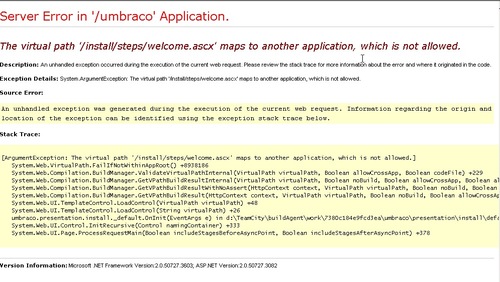
This is because you have installed Umbraco in a virtual directory (not at the web root of the "Default Web Site" in IIS terminology). It is a path problem, easily corrected by fixing the paths in the web.config file.
In the example below, you can see that Umbraco is installed in a virtual directory called "umbraco" which is a child of the Default Web Site. This will cause the standard paths to be incorrect. This installation was done with Microsoft's Web Platform Installer, which does not appear to correct for the problem.
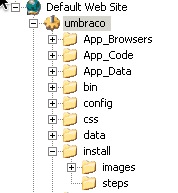
Here is a copy of the appsettings portion of web.config file (located inside the umbraco folder) with the paths corrected for the folder configuration shown above. Just open it up and edit it with notepad to fix.
<appSettings>
<add key="umbracoDbDSN" value="datalayer=SqlServer;server=server;database=db;user id=dbuser;password=password" />
<add key="umbracoConfigurationStatus" />
<add key="umbracoReservedUrls" value="/umbraco/config/splashes/booting.aspx,/umbraco/install/default.aspx,/umbraco/config/splashes/noNodes.aspx" />
<add key="umbracoReservedPaths" value="/umbraco/umbraco/,/umbraco/install/" />
<add key="umbracoContentXML" value="/umbraco/data/umbraco.config" />
<add key="umbracoStorageDirectory" value="/umbraco/data" />
<add key="umbracoPath" value="/umbraco/umbraco" />
<add key="umbracoEnableStat" value="false" />
<add key="umbracoHideTopLevelNodeFromPath" value="true" />
<add key="umbracoEditXhtmlMode" value="true" />
<add key="umbracoUseDirectoryUrls" value="false" />
<add key="umbracoDebugMode" value="true" />
<add key="umbracoTimeOutInMinutes" value="20" />
<add key="umbracoVersionCheckPeriod" value="7" />
<add key="umbracoDisableXsltExtensions" value="true" />
<add key="umbracoDefaultUILanguage" value="en" />
<add key="umbracoProfileUrl" value="profiler" />
<add key="umbracoUseSSL" value="false" />
<add key="umbracoUseMediumTrust" value="false" />
</appSettings>
Umbraco installation error: Unrecognized attribute 'restartOnExternalChanges'
When using Microsoft's Web Platform Installer to install Umbraco on a Windows 2003 server, everything seemed to be going right until I tried to view the site. I saw only this error message:
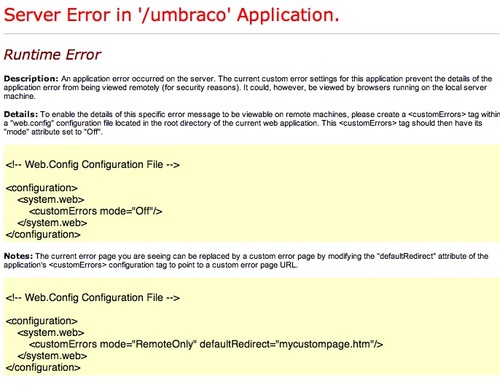
The reason this error was so generic, is that usually ASP-generated errors are only output to browsers on the server (local), and not to external browsers. This is for security reasons: often debugging messages contain specific path or other information that could be used to attack the server. This behavior is set in IIS Manager, under ASP.NET. If you need to temporarily alter this behavior for convenience, you can do so in IIS Manager:
- In IIS Manager, right click the umbraco directory, and select Properties.
- In the Virtual Directory tab, cllick the Configuration... button.
- In the Application Configuration window, select the Debugging tab, and change the settings as desired. Just remember to change it back before you go live.
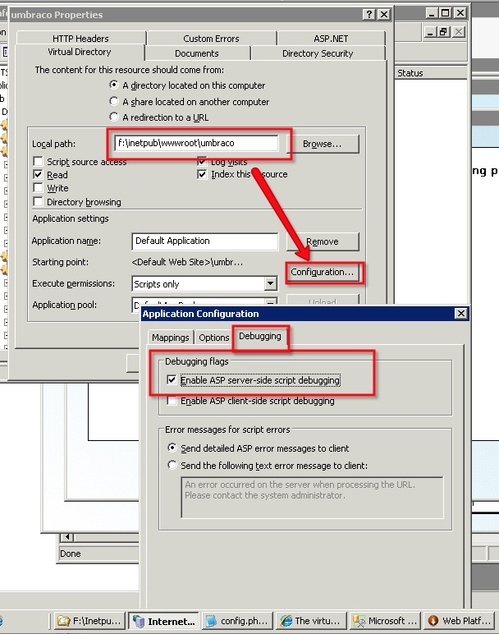
Or you can simply view these messages by using the browser on the server. The real, uncensored message was much more detailed:
Server Error in '/umbraco' Application.Configuration Error
Description: An error occurred during the processing of a configuration file required to service this request. Please review the specific error details below and modify your configuration file appropriately.Parser Error Message: Unrecognized attribute 'restartOnExternalChanges'.
Source Error:
<configSections&rt;
<section name="urlrewritingnet" restartOnExternalChanges="true" requirePermission="false" type="UrlRewritingNet.Configuration.UrlRewriteSection, UrlRewritingNet.UrlRewriter" /&rt;
<!-- ASPNETAJAX --&rt;
<sectionGroup name="system.web.extensions" type="System.Web.Configuration.SystemWebExtensionsSectionGroup, System.Web.Extensions, Version=1.0.61025.0, Culture=neutral, PublicKeyToken=31bf3856ad364e35"&rt;
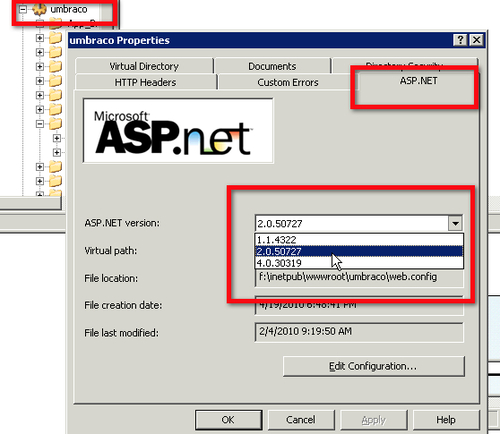
A message in the Umbraco forums explained that it was due to the wrong .NET version being used by the application. Here is how to fix that.
In IIS Manager, right click the umbraco directory, and select Properties.
Click the ASP.NET tab and select the 2.0xxx version from the dropdown menu. Click OK.
April 17, 2010
Add features to your Canon Camera with CHDK
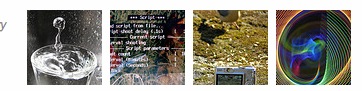
Images from a flickr gallery devoted to CHDK (these are not my images!)
I've experimented with all the features on my Canon point-and-shoot camera, but one thing it is missing that would be very nice to have is auto-exposure bracketing, so I could create HDR images more easily.
It turns out there is an alternate operating system, CHDK, or "Canon Hack Development Kit," that you can install on an SD card. When the camera boots up with it, lots of new features are available. It doesn't hurt the camera, and disappears the minute you boot up without the special SD card.
CHDK makes it possible to do some camera hacking by writing scripts in BASIC that can be run on your camera.
Some of the new features you get when you install CHDK include
Ability to handle RAW files, bracketing, full manual control, motion detection (fast enough to catch lightning) USB remote control, and the ability to script new functions yourself.
To CHDK go to:
and download the correct full installer for your camera.
You will need:
- A blank SD card, big enough to hold the relatively small system files and a lot of images (shooting continuous mode makes a lot of pictures!) - I suggest a 4 gb card.
- A card reader
- An installation utility:
If using a Mac, download either SDM Installer app or the CHDK Mac Installer AppleScript and follow the appropriate instructions.
[CHDK Mac Installer applescript] (Instructions included)
Visit the CHDK Wiki for more information.
Check out the CHDK pool on Flickr View some nice examples in this gallery:
April 15, 2010
Microsoft Remote Desktop Connection for Mac
There is a Mac version of Microsoft Remote Desktop Connection available here: [Download here]
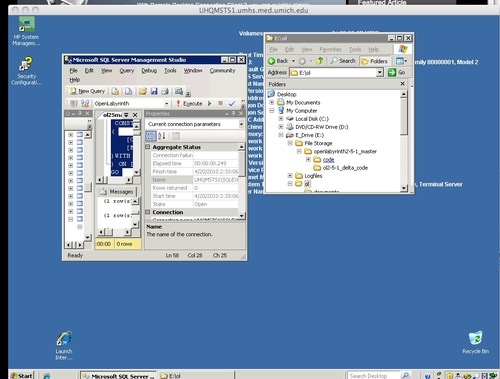
Among other things, this means you can log on and manage Windows servers from your Mac!
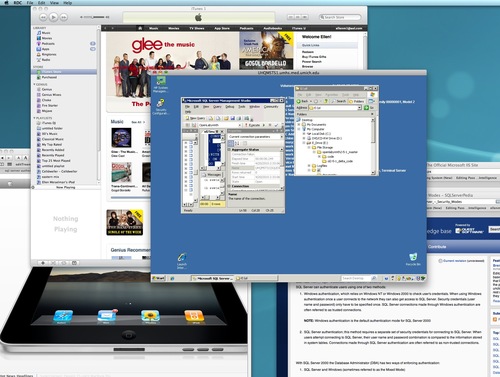
SQL server Management Studio and Windows Explorer, using RDC for Mac:
April 13, 2010
Remove mouse-click sounds in Adobe Captivate, Adobe Presenter and Articulate
Adobe Captivate, Articulate and Adobe Presenter can all add annoying clicking sounds or "pops" between slides when there is narration. These clicks often are associated with either picking up the actual mouse-click used to switch slides, are added in by the application by design, or added in as an audio artifact. The solutions vary depending on the application and cause.
- Adobe Captivate: the clicks can be mouse-click sounds added by Captivate. To silence these generated mouse-click sounds, you may want to try this suggestion from the Paul Dewhurst's "RaisingAimee" site. Replace the standard mouse-click sound with a silent sound file from Paul's site:
Download the Mouse.mp3 file from Paul's site
Locate the Mouse.mp3 sound on your computer, and replace it with the silent Mouse.mp3 file from Paul's site. Look inProgram Files > Adobe > Adobe Captivate 3, 4, etc. > Mouse > ClickSounds
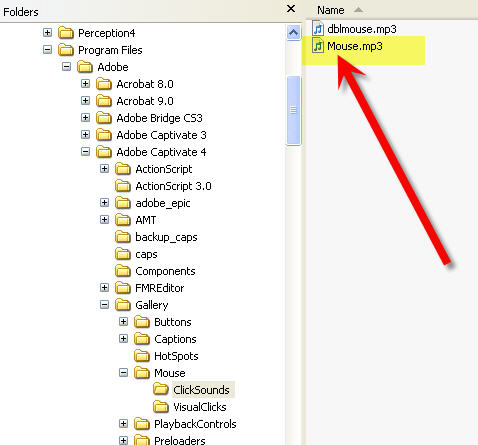
Then restart Captivate and republish your presentation.
- Any: If your mic is not directional enough, it may have actually picked up the sound of you clicking your mouse. Try using a quieter mouse, a more directional microphone, or use keystrokes to change slides instead of the mouse. [LINK]
- Any: Try using a USB headset mic instead of a mic that plugs into the mic jack. [LINK]
- Adobe Presenter: Selecting "wav" format for audio that will be imported into Presenter may cause Presenter to add the sound as an artifact. Convert the audio files to mp3, reimport and re-publish. [LINK]
- Adobe Presenter: Be sure you are using the latest version. Many audio issues have been corrected with updates. Check for updates: [LINK]
Resources:
- Audio in Adobe Presenter Presentations
- Best practices for importing audio for Articulate
- Adding audio to Adobe Captivate projects (pdf) add_audio_captivate.pdf
- Adobe Presenter adding clicking noise @ beginning of slides with audio
- Adobe Forums: Disable Clicking sound
- Articulate: audible "phfff"/click sound between each slide narration
- Captivate resources: raisingaimee.co.uk
- Captivate 4 has problem with certain sound-cards