October 30, 2005
Make other extensions besides ".shtml" process for Server Side includes
The default extensions which IIS reads for Server Side Includes are .shtm, .shtml and .stm.
Suppose you want server-side includes to be processed in .htm files also? For example you may have file with the .htm extension which has been on the web for some time and has numerous links pointing at it. You could replace it with a file with one of the allowed extensions, and put a redirect in its place, pointing to the new file. Or, if you have access to the IIS server settings, you could add the .htm extension to the list of files processed for SSI.
Click on thumbnail images to see larger version.
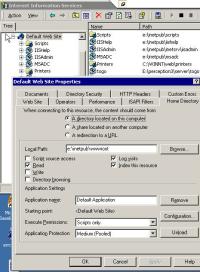
- Open IIS Manager and right-click the Default Web Site. Select Properties from the popup menu. The Properties dialog appears.
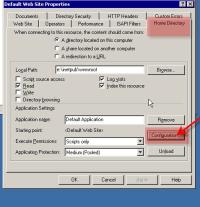
- Select the Home Directory Tab and click Configuration under the Application Settings area.
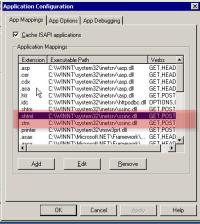
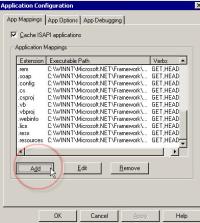
- Select the App Mappings tab. Scroll down to the .shtml extension. We want to copy the executable path to use on our new extension. Select .shtml and click Edit.
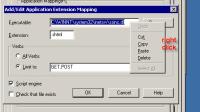
- The Add/Edit Application Extension Mapping dialog for the .shtml extension will open. Right click the path and copy it. Click the "Cancel" button to close the dialog.
- Now let's add the new extension. Click the Add button. The Add/Edit Application Extension Mapping dialog opens again.
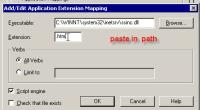
- Paste the path you just copied into the Executable field. Then enter the NEW extension into the Extension field. Under the Verbs area, select Limit and enter "GET, POST." Make sure Script Engine is selected. Then click OK.
Posted by ellen at 12:46 PM
October 29, 2005
Make a directory on a server part of another server's domain
Sometimes it is necessary to have files or an application on one IIS web server (Server B) appear as if they were in the same domain as another server (Server A). For example, you may want
http://serverB.com/contentto be accessible via the URL
http://serverA.com/content
This is useful in cases where you need to avoid cross-doman scripting issues, or simply want to make everything appear to be hosted under one umbrella domain name.
On an IIS server, this can be accomplished by creating a virtual directory on Server A which points to a directory on Server B.
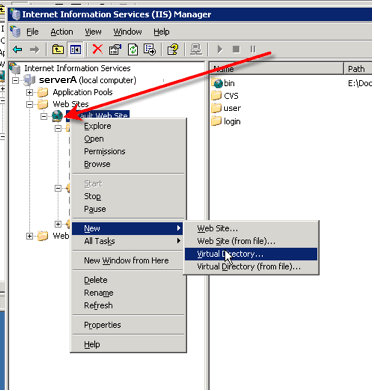
- Open IIS Manager on Server A and right click on the Default Web Site. Select New Virtual Directory from the menu.
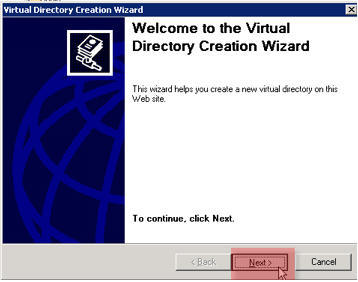
- The Virtual Directory Creation Wizard will start. Click "Next."
- Enter the alias name you want to use for the new directory. This will become part of the path.

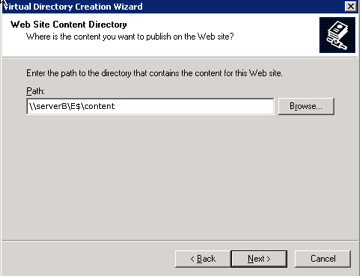
- Enter the path to the real network directory that this virtual directory will point to. This must be a file system path, not a web path. The real directory have access permissions set to be web-accessible.
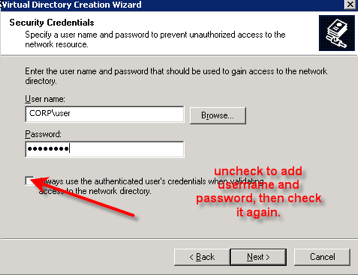
- Enter the name and password of a network account with the minimum sufficient privileges to access the content in the directory.
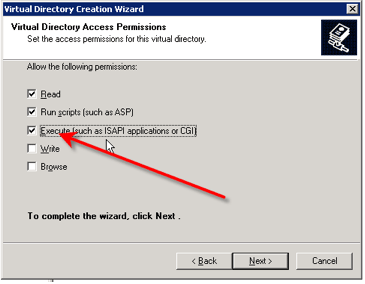
- Select the web permissions for the directory.
- Click "next" and you're done! The directory should now be accessible via a URL like;
http://serverA.com/content as well
For more information see Microsoft's Knowledgebase article "HOW TO: Create a Virtual Directory on an Existing Web Site to a Folder That Resides on a Remote Computer"
Getting Questionmark Perception to work with Docent 6.5
Making Questionmark Perception quizzes SCORM-compliant, AND compatible with Docent 6.5 LMS was a big piece of our recent Docent implementation project, since we had many legacy quizzes. Here are the steps involved:
- Install QMWise (available from Questionmark.com) on the Perception server.
- Install Content packager (available from Questionmark.com) on your workstation ( tip, do NOT have SSL enabled on the server - it blocks QMWise communication if the certificate is slightly misnamed).
- Read the Knowledgebase article "How can I call Perception from a SCORM-compliant Learning Management System?"
- Get the files scorm.pip and perceptionSCO.htm from Questionmark.com.
- Put scorm.pip in the "pip" folder on your Perception server.
- Edit the file scorm.pip to shut off topic scoring. This keeps the query strings which are sent back to perceptionSCO.htm shorter, necessary for compatibility with Safari.
[Settings]
UseHome=yes
TopicPercent=yes
My philosophy on topic scoring is that Perception's quiz result reporting tool is now so much better than anything we could possibly build on the Docent side, that it doesn't pay to lose other functionality just to include topic scoring. Individual topics remain reportable in Perception's own report manager, and we will probably never need those scores on the Docent side of things. - Put perceptionSCO.htm in a directory on your LMS server, keeping the relative path from the root directory as short as possible:
- Edit the file perceptionSCO.htm to close the browser window upon clicking the Home button, and change the strings "sStartText" and "sEndText" to say whatever you prefer.
// Close the browser window used to run the assessment
// when it finishes
// set true to close the window, false to leave it open
var bCloseAtFinish = true;
- Auto-SCORM template: don't use. Questionmark came out with a new "auto-SCORM" template, which is supposed to eliminate having to click the home button, but it doesn't work within the Docent aicc_frameset across domains, so I don't use it. I think there is a fundamental issue with it with respect to the way Docent needs to work, but I need to experiment with it a bit more.
- Edit your quiz templates: Add this line to them in the [DOCUMENT] section
TARGET=TARGET="_self"
This is so that the quiz pages don't jump out of the aicc_frameset that docent uses to communicate with them. - A sample template is here. Download file
- Set up a virtual directory on the LMS's IIS server to point to a directory on the perception webserver server.
This is to get around the remaining cross-domain issues NOT addressed by Questionmark's admittedly clever SCORM setup which does not work well with Safari or Mozilla. I'm calling the virtual directory "quiz" for this example.
So, for instance:
http://yourLMSserver.com/quiz/
actually points to:http://your.perception.server.com/q/
- Assign the template you created earlier to a quiz.
- Publish the quiz, so that it is "Live."
- Create a manifest for the quiz using the Content Packager.
- Settings for Content Packager:
Base URL -http://yourLMSserver.com/somedirectory/
SCORM Extension:
 perceptionSCO.htm?call=scorm&session=&href=
http://your.perception.server.com/q/session.dll
- Save the manifest to a directory on the perception webserver within the directory pointed to by the virtual directory you just made. The directory must be web-readable.
http://yourperceptionserver.com/q/manifests/
would be one path to the manifests, but alsohttp://yourLMSserver.com/quiz/manifests/
- Edit the manifest to add whatever you want (Mastery score, course code, etc) Save the manifest to the manifests directory on the perception server.
- In Docent, create an AICC/SCORM course.
- "Manifest filename" will be whatever you named the manifest.
"Base URL" will behttp://yourLMSserver.com/quiz/
- hit "continue", and it should import the manifest. Then you can finish entering the course details.
\\yourLMSserver.com\somedirectory\perceptionSCO.htm
October 24, 2005
Docent, SCORM and cross-browser issues
During our recent Docent LMS implementation, one of the most difficult tasks I was faced with was to ensure SCORM activities work if browsers other than IE were used. The specific cross-platform issues fell into several categories:- Cross-domain scripting issues
- Mozilla Live Connect Bug
- Domain names not fully qualified
- Query string length
Definitions of terms used in this article:
SCORM depends on the learning module being able to communicate with the server in some way - generally using javascript or java In Docent's case, a java applet API adaptor launches a learning module, and sends user data to it. The learning module transmits student interaction data back to the applet, which then relays it on to the LMS server.
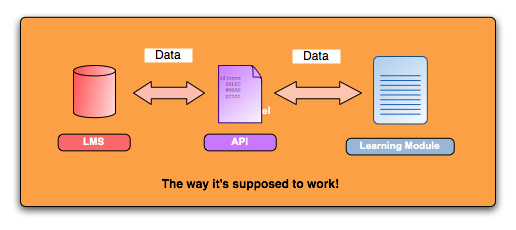
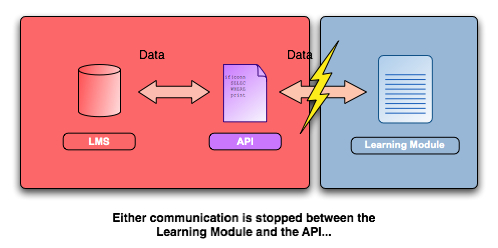
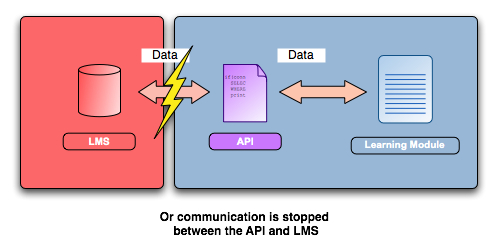
The problem is, learning activities must often be located on other servers, and in other domains. Many browsers will block Javascript or Java communication between domains, unless various fixes are applied - none of which work on ALL browsers.
Docent's suggested setup for content in another domain partially solves this issue. A frameset containing 2 frames is located on the content server. Frame 1 contains the API adapter applet, and Frame 2 contains the learning module.
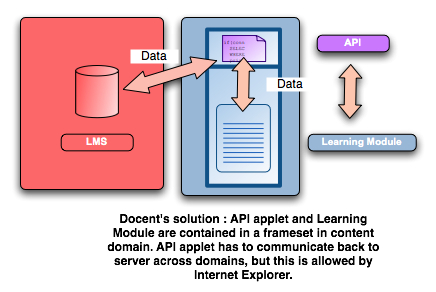
When a learner interacts with the learning module - either browsing the pages or answering questions, the learning module transmits data to the API in Frame 1. The API passes the data along to the LMS.
This works fine on Internet Explorer on Windows. Unfortunately it doesn't work with anything BUT Internet Explorer since the API adapter applet still has to communicate across domains. Safari and any Mozilla-based browser generate Java LiveConnect errors and the learner data never arrives at the LMS.
I needed to find a solution that would work with Macs and Firefox on a PC.
After trying various fixes unsuccessfully, I decided that the best situation would be if everything at least appeared to be in the same domain. A kindly system administrator showed me how to do this: create a virtual directory on an IIS server which points to the content server. The idea is to create a directory on the LMS server that is actually an alias for a directory on the content server.
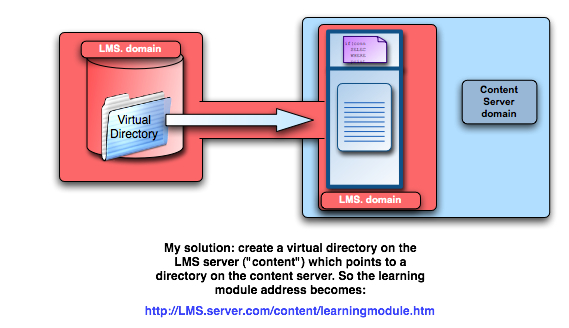
This makes the domain of the content server appear to be the same as the LMS server domain. I was sure I was on the right track. So I was very surprised to find there were still errors. I did several more tests, and was shocked to find that even when I put every piece on the LMS server - frameset, API adaptor, AND learning module, I still got LiveConnect errors in Safari and in Mozilla-based browsers on a Mac. The reason for this was a Catch-22 that is built into Docent's code:
If content is located on a separate content server, Docent generates a launch path to the aicc_frameset based on the content-server URL (which it derives from the location of the manifest file) plus the relative path to the frameset, which may be something like:
/docent/lms/scorm/aicc_framesetSo entering a path to the manifest like:
http://contentserver.com/manifests/
will cause Docent to create a launch link to the frameset like
http://contentserver.com/docent/lms/scorm/aicc_frameset.htmlHowever, if the content resides ON the LMS server, or in the LMS server's domain, the launch link is generated differently. Docent calls a file on the Application server, called aicc_frameset.jsm which generates the frameset on the fly:
http://lmsserver.com?CMD=GET&file=catalog/aicc/aicc_frameset.jsm",params
However, we have the Application server separated from the IIS server, so the domain is DIFFERENT. So putting the files into the same domain actually causes a different domain to be used in building the launch URL.
Under our system, the launch URL ends up looking more like this:
 http://lmsserver.com/docent/bin/docentisapi.dll/lms,lmsAPPserver.com,2151/
SQN%3D-52721131/?CMD=GET&file=catalog/aicc/aicc_frameset.jsm
which as far as Safari or Mozilla are concerned, doesn't match
http://lmsserver.com
Even the slightest difference is enough to stop communication - a different port number, for example. see "The Same Origin Policy" for more information on Mozilla's requirements
So my next task was to make sure that no matter where content was located, Docent would build a launch path that would meet my needs.
First I wanted to make sure it wouldn't just add a server port if I hadn't specified one:
commented out Lines 243 -244
 if (urlProps.port != null)
 url += ":" + urlProps.port;
became
 // if (getServerPort() != null)
 //    url += ":" + getServerPort();
Then I changed Lines 366-369
   return generateAppFileUrl(urlBase +
                "?CMD=GET&file=catalog/aicc/aicc_frameset.jsm",
                params
            );
to
 return generateUrl(genServer(scorm_url_base_props) +
"/elearning/docent/lms/scorm/aicc_frameset.html",
 {
 lesson_url: genAICCLink(aicc_sid, lessonURL, webLaunch, courseCreator,
systemVendor, version, scorm_url_base, isSCORM),
 title: title,
 codebase: getScormCodebase(),
 aicc_sid: aicc_sid,
 aicc_url: getAICCurl(playerInfo) // $hotfix 11695 $
 }
 );
which forces the launch URL to be built the same way as it would be if the content were in another domain.
There have been and bugs having to do with support for LiveConnect in Mozilla-based browsers. These have the effect currently of making it difficult to get SCORM running across domains on the Mac in Mozilla browsers, and also generate java errors in Firefox on PC. For more on these errors, see the Bugzilla search page
In particular see the following: Liveconnect calls fail if applet's codebase is in different domain LiveConnect broken on Mac OS X 10.2 and 10.3 No Mozilla UNIX browser and Java Plug In fully supports LiveConnect LiveConnect Java -> JavaScript communications is slow and noisy.Domain Names must be fully Qualified
Another issue may seem obvious, but it is amazing how many Windows-only network people don't realize that this makes a difference for non-Windows users: All domain names must be fully qualified (the entire domain name must be listed, not just the server name). Where a windows machine will have no trouble finding
"LMSserver/content/file.htm"
on a network, a Mac browser will not be able to find the server. The URL must be fully "spelled out" as
"LMSserver.whatever.com/content/file.htm"
I found that Safari has a problem with transmitting data when the query string passed to the learning module is too long. This can be a problem when using AICC instead of SCORM, or when using Questionmark Perception quizzes, which rely on using query strings to get around some of the cross-domain issues. The solution I came up with for Perception quizzes was to design the file locations so that the paths would be as short as possible, and to turn OFF Topic reporting. When a Perception quiz reports a topic score, it lists the full name of the topic, which can be very long. It then truncates useful information which comes after, including the Participant Details which contain the full name of the student.
October 10, 2005
How to publish Powerpoint files for the web
This procedure which will leave you with an original PowerPoint-format (to use in lectures) document, and a web-enabled version:- Create a standard powerpoint presentation. Save it as ProjectName.ppt in the folder you are using for the project. Make sure every slide has a Title. These titles will be used as the titles of the buttons on the left navigation column in your web page. It helps to use a powerpoint template so that you are definitely creating a title with each new slide.
- When you are done editing, and ready to make a web version of the presentation, select Save as Webpage from the File menu. The Save As dialog comes up.
- Navigate to your project folder in the file list area. Double-click on the folder so that it opens and you are working inside it.
- Click the CreateNewFolder icon just to the right of the Save in: box. (the icon looks like a folder with a spark on it.) A New Folder dialog will pop up. Type learningmodule in the Name box.
- Hit OK. You will now be "inside" the learningmodule folder.
- Click the Publish button. The Publish as Web Page dialog comes up. Publish what? should have Complete presentation checked.
- Click Web Options. The Web Options dialog comes up on top of the Publish as Web Page dialog. Most of the listed options can be left as is, but you may want to play with using different colors for the slide navigation controls - white on black, black on white, etc. Look through the tabs to get an idea of what other options exist.
- Click OK to get back to the Publish as Web Page dialog.
- Browser Support should be Microsoft Internet Explorer 4.0 or later. Under Publish a copy as:
- Click the Change button. The Set Page Title dialog comes up.
- Choose a title that you would like to appear on the very top title bar of the web page - this can be long and have spaces in it, maybe something like: "Project Name - Corporate Policy" . Type this into the Page title: box. Hit OK.
- You'll be back at the Publish as Web Page dialog. look a the path listed under file name. It will probably be something like: C:\documents\path\to\learningmodule\ProjectName.htm
- Change the name of the file to
index.htm
so it will now read:C:\documents\path\to\learningmodule\index.htm
- what this will do for you is enable you to give people urls like:
http://www.med.umich.edu/i/riskmgmt/reportform/learningmodule/