One key item that seems to be inexplicably missing from Microsoft's Web Platform Installer is some kind of front end like phpMyAdmin for administering mySQL databases. It installs one for SQL Server Express, but not for mySQL. Fortunately, it's only a 5 minute job to install phpMyAdmin yourself.
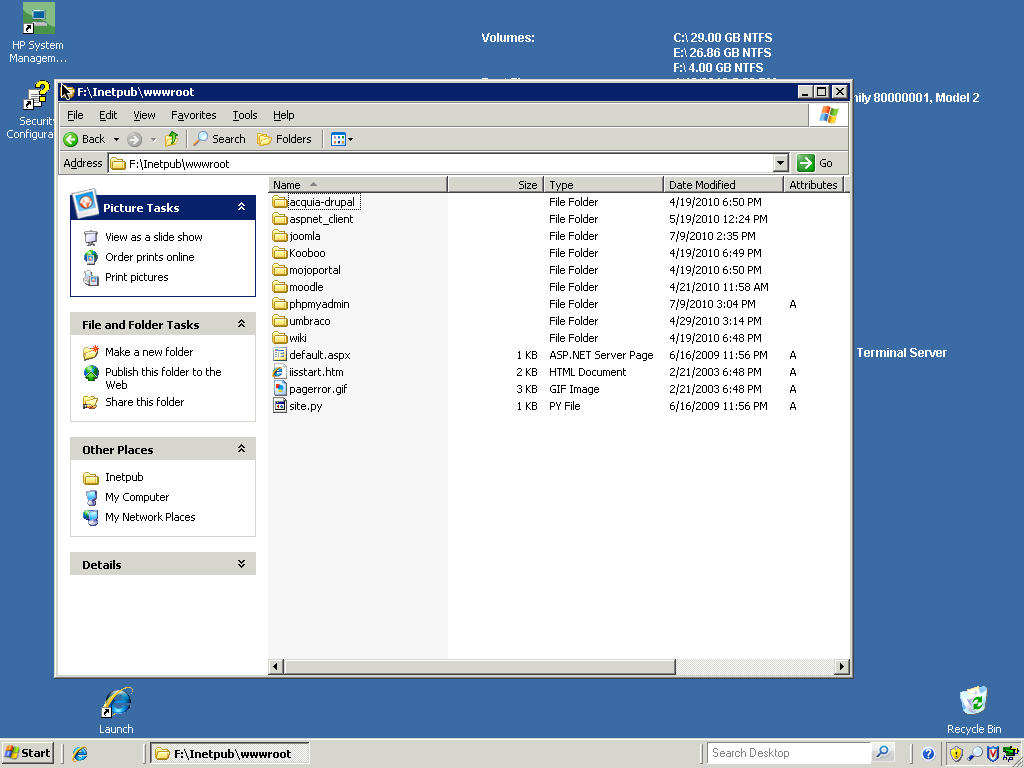
After running the Microsoft Web Platform Installer and installing whatever PHP/mySQL applications you want to run, download and decompress a copy of the latest version of phpMyAdmin from this page. Drop the folder containing the phpMyAdmin files into the inetpub\wwwroot directory on your IIS server. Shorten the name of the folder to "phpmyadmin" or something appropriate when typing a URL.
Ads by Google
Posted by ellen at July 09, 2010 06:27 PM
Rename the file config.sample.inc.php to config.inc.php.
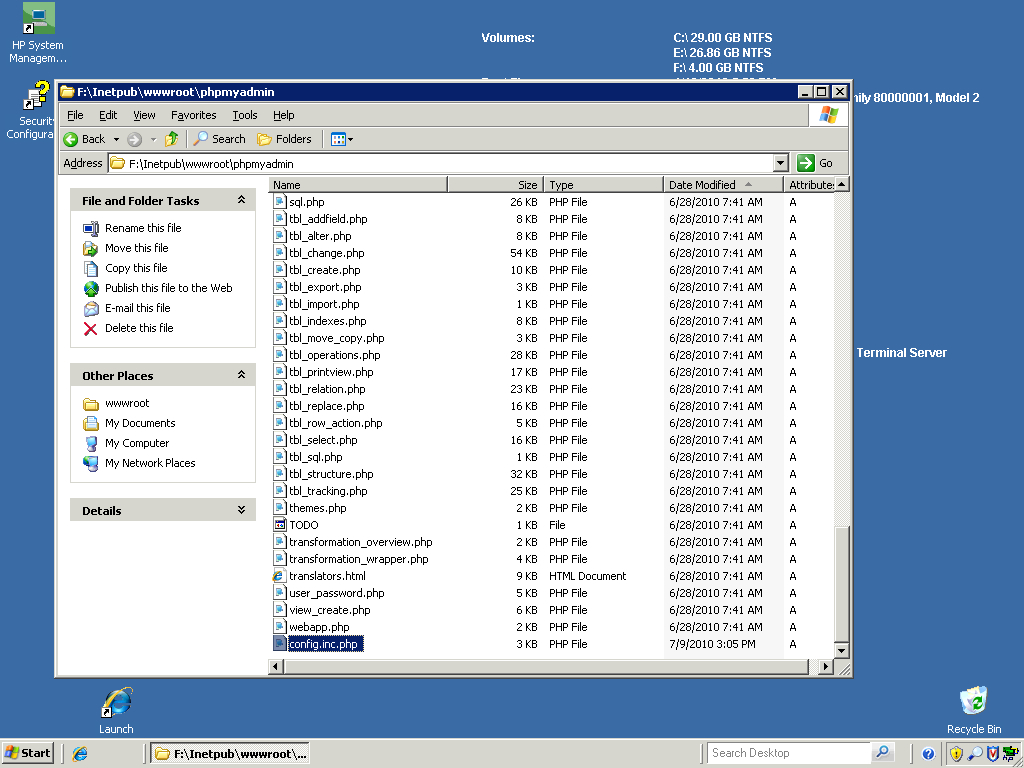
Open the file in a text editor and find line 18. Type any word that occurs to you inside the single quotes. Anything at all will do.
$cfg['blowfish_secret'] = 'yourwordgoeshere '; /* YOU MUST FILL IN THIS FOR COOKIE AUTH! */Log in to phpMyAdmin at
http://localhost/phpmyadmin/

or at

http://myservername.com/phpmyadmin
Log in with the username and password you selected when you used the Web Platform Installer to install mySQL. No further configuration is necessary. That's really all there is to it!
Ads by Google

