October 21, 2003
More on styling lists
Probably something to do with IE's wrong interpretation of the box model, but if you style a list as:
<li class=\"bodytext\">Text</li>

<li class=\"bodytext\">More text</li>
You get the bullets not lining up with the top of multiple line list items as they should, in IE for PC: they line up with the bottom of the item instead.
They also do not show up as the correct list-style, if you choose square or something else.
Style lists as
<div class=\"bodytext><li>text</li></div>
and list bullet alignment and list-style all straighten themselves out.
October 19, 2003
Help Center Links not Active in OS X
There is an intermittent problem with the OS X Help Center or Help Viewer application, where the links in the navbar stop working. Turns out the fix is to Quit Help Center, then throw out the file
com.apple.helpui.plist
in
/Users/
Making the font size larger (since they start out in mouse type) is what causes the bug to appear.
I've found that the help files work pretty well in a browser, however.
Thanks to the people on this forum thread for the answer.
October 16, 2003
Can't see .htaccess files with Fetch?
I realized at home I could not see .htaccess files or any files beginning with "." when using Fetch 4.0.3 for OSX, although using the same version at work I could. Haven't solved the "why" of that yet, but I did find a quick fix:
Open AppleScript Editor, paste:
tell application "Fetch 4.0.3"

	set use LIST minus al to true

end tell
into the code window, and click "Run." Problem solved.
Thanks to the guys at Fetchsoftworks for that one.
October 10, 2003
What's holding YOUR $6000.00 Dell workstation together?
I've discovered a new use for twisty-ties: keeping the "precision engineered" clamshell halves of my Dell Precision workstation together.
I have to say, I am not impressed with the fit and finish on this machine. I've had it for a year, and just had to have the USB and Firewire ports on the front replace, AND the ethernet jack on the back replaced. All were loose - not that the port itself was coming loose from the board, but any cables plugged in would tend to wiggle, producing intermittent connections.
The firewire port came pre-bent up from the factory, but the others developed the condition with normal use. The main door-panel has never been easy to close, and after the technician left yesterday, having replaced the ports, the door was closed. However, I needed to move the machine a few feet. Presto, the door sprang open, and I absolutely could not keep it closed. Enter the twisty tie, threaded through the security lock holes on the door and back panel. Works great!
October 6, 2003
Closed Captioning Part II, Synching SAMI files using MS Producer
Synching Sami files using MS Producer:
I received the MS Producer resources disk in the mail, and it contained one example of a template that has a captioning window below the video area.
To use it, you need to create a "SAMI" file, which is a text file with HTML-style tags to describe the captioning styles and timing for each line of caption text.
Lacking anything better at the moment, I use Producer to do the synching: Play your video in Producer for the length of one phrase, stop it, note the timing, and use "control-tab" to switch to a text editor where the SAMI file is being edited.
I found this procedure a bit slow, and had some problems with getting the exact timing right, but it does work. Complete instructions for captioning with Producer are available as a (Windows-only .exe file !) download HERE
A non .exe resource for understanding SAMI files is HERE
Sami files work with Windows Media Player, but Quicktime has good support for captioning also, using text files that are somewhat similar to SAMI files. A nice outline of the process of captioning a Quicktime file is HERE It also describes captioning with Windows Media Player.
NOTE:Since writing this, I've discovered Subtitle Workshop, which makes the captioning process much easier. See A quick start to captioning with Subtitle Workshop
To see all captioning posts, click here
October 5, 2003
Try MS Remote Desktop instead of Virtual PC
A tip from a friend that was too good not to pass along:
__________________________
"Just passing on some info in case someone else (like me) doesn't know about Microsoft Remote Desktop. I just got my G5 and I was pissed that Virtual PC won't work with it. While searching the net, I came across a quote "I use a PC with Windows XP Pro installed and MS Remote Desktop and it's much faster". Well, since I gave my wife my G4, (getting her off a PC!) I installed a copy of windows XP Pro on her PC and downloaded the Mac OS X Version of MS Remote Desktop to the G4. This configuration rocks! Her PC is only a 667 Celeron, but the screen response and capability to run any program on her PC right on her G4 is awesome!!!
If you need to run PC Apps, and have a PC laying around.. then try this. I don't have a keyboard or screen or anything else connected to the PC (well, I do have an Epson 740 with a Parallel Connection.. as well as a USB connection to the mac from the same printer) So both computers can use the same printer.
A much better solution than VPC.. much faster.. much more compatible on the windows side."
__________________________
Thanks to MacDaddy for this one.
October 3, 2003
Taming viruses to control introduced pest animals
I found this interesting.
Australia has one of the most active research groups in the world in this area, since the Australian environment suffers from many pest animals that were introduced and have no natural predators.
New Scientist reports that Australian researchers have created a highly infectious rabbit virus (myxoma) that could wipe out the country's rabbit pests by making them sterile. Infected female rabbits produce antibodies against their own eggs, a process called immunocontraception. The team has already applied for permission to carry out field trials with a similar virus that makes European mice infertile.
The downside is that the viruses could be accidentally transferred to another continent. Another worry is that the virus could spread to other species, but the modified virus is no more likely to do this than the wild strain, which has not done this in the 50 years it is been in Australia. For Australia's worst feral predator, the fox, the team has not been able to identify a virus that does not also infect domestic and wild dogs, including dingoes. So they plan to modify a canine herpes virus so it can only replicate when an antibiotic such as tetracyline is present. The virus and antibiotic would be added to baits that are irresistible to foxes, but are shunned by dogs and dingoes. Because the virus doesn't infect any native mammals, they would be safe even if they ate the baits.
You may recall this team was mentioned in connection with an extremely dangerous mousepox strain last January.
Post script, added Nov. 9: An American team has improved on the deadly mouspox strain, but also created a countermeasure of anti-viral drugs.
"Plug and Play" on Windows
I had occasion to reinstall Windows2000 the other day and got a chance to see what the rest of the world endures when using anything but the most basic standard peripheral devices.
I have a two monitor setup, one a Dell 17" flat screen, nothing special. The other is a 19" Dell UltraSharp.
My reinstall was done from a ghost image, made from the install disk that came with the machine. A stripped, basic reinstall, which only had my network settings and network software added on, so at least I didn't have to do that again.
So, the reinstall went quickly, but then came the endless trips to Windows update, restarts, and back to Windows update for more. Quite a few of the updates have to be installed separately, then the machine restarted.
Oh, did I forget to mention, after the reinstall, the left monitor, the digital Dell Ultrasharp, was black. I figured it would be OK, once I got around to opening the display control panel and setting it to use both monitors.
However... one of the updates was an update from Nvidia, the maker of the Quadro video card I have. So I accepted that one, then when the updates were finally finished I attempted to get the second monitor going again. No matter what I did, it would not show up in the dropdown menu in the control panel. So...
I went to nvidia.com, got THEIR latest driver for the card, and installed that. Now here is the good part!
This is where I found the setting that finally worked (and Mac users, try not to laugh too hard...)
Control Panels --> Displays (because this is where I set it when I first got the computer) --> Advanced--> Quadro4 700 XGL--> Open pop out side menu to LEFT of control panel --> click on "nView Display Mode"--> nView Mode--> Horizontal Span --> then fiddle with which display gets "primary" setting for about 10 minutes, if set to wrong one, one monitor goes black, instead of simply switching the task bar around.
Pitiful.
Sometime I'll post on the interesting discrepancies in several applications depending on which monitor your cursor is in. Things like permissions change in Groupwise, buttons cease to work in Adobe Premiere, etc.
phpMyAdmin: How to enable the relation features
phpMyAdmin is a web-based mySQL administration script, available from PHPmyAdmin.net. A lot of hosting services use phpMyAdmin as their mySQL editing and administration interface.- THE TABLE RELATIONS FEATURE OF phpMyAdmin
- DOWNLOAD AND UNPACK THE ARCHIVE
- CONNECTION INFORMATION
- FILL OUT PMAdb INFORMATION
- SAVE AND UPLOAD
- IMPORT THE TABLES INTO PMAdb
- RELATION VIEW
One very useful feature of phpMyAdmin is the ability to define relations between tables. This means the data from a field in one table can populate a field in another table. For example:
Say you have a table called "Dogs" that lists all your pets:
Dogs
____________________
ID     DogName   Breed
___________________
1      Fido       ?
2      Prince     ?
3      Fluffy     ?
__________________
...and you would like the field "Breed" for each of the dogs listed to be populated with values that come from a table that contains a list of all the breeds. In the words of the phpMyAdmin manual, you are using a field in one table as a foreign key in another table.
The second table "Breeds" that holds the breed values might look like this:
BREEDS
_____________
ID  Breed
_____________
1    Poodle
2    Terrier
3    Labrador Retriever
4    Beagle
5    Bulldog
If the relation features were enabled, when you edited a record in the Dogs table, you would see a dropdown of the items listed in the Breeds table like this:
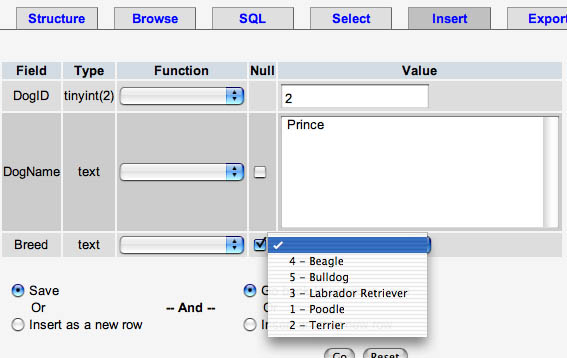
This structure eliminates the redundancy of having to enter the same breed over and over in a long list of Dogs, and more importantly you can relate the list of Breeds to any other object in the database, independent of the list of Dogs.
I've found that although hosting services frequently install phpMyAdmin for their users, they rarely enable the table linking features. Users can't configure the hosting services pre-installed phpMyAdmin script to suit themselves, so if you want to use table linking, you will need to set up your own copy of phpMyAdmin within your website directory.
I found it confusing to set up table linking correctly the first time, so here are my simplified setup instructions for phpMyAdmin and enabling table linking.
(Complete documentation for installing phpMyAdmin is in "documentation.html" in the phpMyAdmin directory or HERE.)
DOWNLOAD AND UNPACK THE ARCHIVE
Download the latest version from this site. Unpack the archive, and find "config.inc.php". Open it, and display line numbers in whatever html or text editor you are using.
FILL OUT CONFIG.INC.PHP
Look for the "Server Configuration" section starting around line 63. phpMyAdmin can control multiple virtual servers or multiple servers with a single instance of the application, so there are several identical lists of options, one for each server. They are each labled by: "$i++; ".You will only need to fill out the first list, labeled with a "$i++;" (around line 68).
FILL OUT CONNECTION INFORMATION
The first part of each Server Configuration block mainly deals with the connection information: the mySQL host address (in most cases this will be "localhost," but sometimes it will be on a separate server. If so, fill in the address of the server), a username that has administrative permissions for your databases, and the password.

Connection information
PMAdb DATABASE INFORMATION
You will need to create a place for phpMyAdmin to store linking data in order to get the linking features working. It can either be a new database, or if you can't create a new one, use an existing one, and insert the required tables into it. The name of this database goes in line 90. For our purposes we'll call it "PMAdb."
The names of the required tables go in the next few lines. Default suggestions for their names are given in every case. If you change the names of the tables, be sure to change them to match in "scripts/create_tables.sql"

PMAdb section of "config.inc.php"
SAVE AND UPLOAD
Save the customized "config.inc.php" and upload all the files in the phpMyAdmin directory on your server.Browse to http://yourserver.com/phpMyAdmin/, log in (assuming you password protected phpMyAdmin with one of the authentication schemes), and either create the PMAdb database (if you have the privileges to do so), or decide which existing database to use.
IMPORT THE TABLES INTO PMAdb
To create the tables, click "Query Window" in the bottom of the left column.
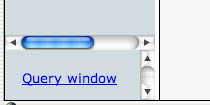
A window will appear. Select the database you are going to use from the "Run SQL query/queries on database" dropdown menu. You can enter the data either of two ways:
1) Open the file "scripts/create_tables.sql", copy the contents, and paste them in the query window, then click "Go" or 2) you can import the file by clicking the "Import Files" tab, click the Browse button and browse to the file "scripts/create_tables.sql" then click "Go."
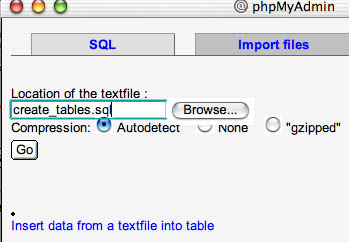
Either method will create the tables and initial data.
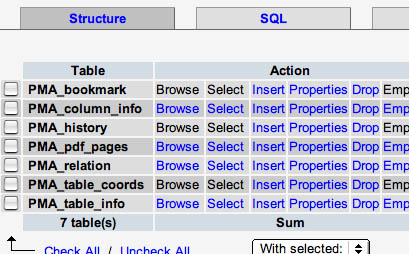
When complete, the structure of the PMAdb database should look like this:
RELATION VIEW
Now try the linking features.Create a new database named DOGSdb, and import the schema for the dogs tables listed at the top of the article into it . Paste the schema shown below into the query window as described above in the " PMAdb.
# SCHEMA FOR DOGSdb---------------------------------------------
#
# Table structure for table `Dogs`
#
# Creation: Sep 27, 2003 at 10:06 PM
# Last update: Sep 27, 2003 at 10:07 PM
#

CREATE TABLE `Dogs` (
  `DogID` tinyint(2) NOT NULL auto_increment,
  `DogName` text,
  `Breed` text,
  PRIMARY KEY  (`DogID`)
) TYPE=MyISAM AUTO_INCREMENT=4 ;

#
# Dumping data for table `Dogs`
#

INSERT INTO `Dogs` VALUES (1, Fido, NULL);
INSERT INTO `Dogs` VALUES (2, 'Prince', NULL);
INSERT INTO `Dogs` VALUES (3, 'Fluffy', NULL);

# --------------------------------------------------------

#
# Table structure for table `Breeds`
#
# Creation: Sep 27, 2003 at 10:10 PM
# Last update: Sep 27, 2003 at 10:11 PM
#

CREATE TABLE `Breeds` (
  `BreedID` tinyint(25) NOT NULL auto_increment,
  `Breed` text,
  PRIMARY KEY  (`BreedID`)
) TYPE=MyISAM AUTO_INCREMENT=6 ;

#
# Dumping data for table `Breeds`
#

INSERT INTO `Breeds` VALUES (1, 'Poodle');
INSERT INTO `Breeds` VALUES (2, 'Terrier');
INSERT INTO `Breeds` VALUES (3, 'Labrador Retriever');
INSERT INTO `Breeds` VALUES (4, 'Beagle');
INSERT INTO `Breeds` VALUES (5, 'Bulldog');
View the table "Dogs" by selecting the database name in the left hand column, then when the list of tables shows up, click on the "Dogs" table name in the list. The [b]Structure[/b] tab will be highlighted and you'll see the structure of the table. Click the [b]Browse[/b] tab. You should see a listing of the three dogs you just imported.
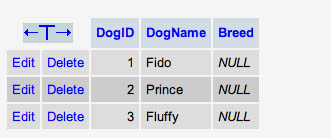
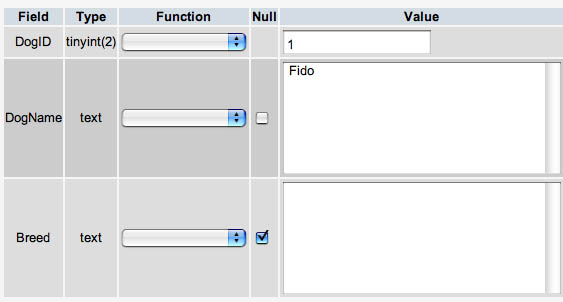
If you click the "EDIT" link next to Fido's name, you should see the edit screen, but the Breeds field will be empty, like this.
Now let's check the Breeds table: In the navigation column on the left, click the "Breeds" link. The structure of the Breeds table should come up: "BreedID" and "Breed "are the two fields that will be listed. If you click the "Browse" tab, you should see a list of all the breeds entered so far.
Click the "Structure" tab again, and then click the words "Relation View" which appear below the horizontal line, and below "Add new field". See the image below - which shows the link on another table than the ones we are working on.

Click to enlarge.
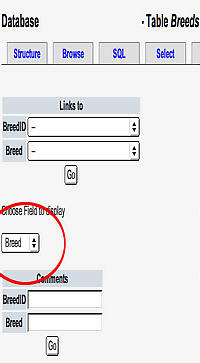
Breeds Table Relation View
We need to decide which field will appear as a label when values from the "Breeds" table appear in the "Breed" field of the Dogs table. The actual value that will be related will be the BreedID, but for ease of selecting the correct BreedID, it is easier to use a text label that is associated with that ID.
We only have two fields in this table: BreedID and Breed, and one of them is an ID number, which is not very descriptive. So let's choose the "Breed" field, which has the name of each breed in it.
Do this by selecting Breed from the drop-down menu under "Choose field to display." Click the Go button below that area.
Now we move back to the Dogs table. Click the link to the "Dogs" table in the left hand navigation column. You should be in the "Structure" tab. Click on "Relation View."'
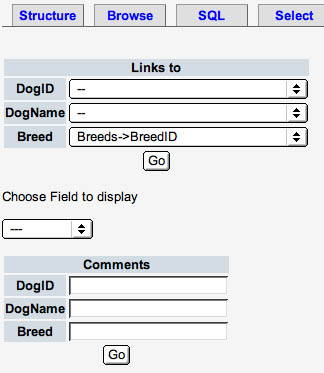
Dogs table relation view
Under "Links to, " select "Breeds->BreedID" from the dropdown menu next to the Breed Field. Only the fields that are indexes ("Breeds->BreedID", "Dogs->DogID") show up here, but our chosen text labels will also display when we edit the Dogs table, since we just set them to do so in the previous screen.
Note that in more recent versions, this task is still under the Structure tab, but instead of clicing the "Choose Field to display"
Click the "Go" button below the "Links to" area. Now go back and Browse the Dogs table, and try editing any one of the records. You will now see a dropdown menu containing all the breeds in the Breed field!