September 21, 2011
Safari error: Web pages are not responding.
Since the last update of Safari, I've been seeing way too much of this error:
"Webpages are not responding. To visit the selected webpage, all webpages in other tabs and windows must be force reloaded. Do you want to visit this page?"Once this error shows up, usually several windows will start reloading on their own. The error seems to happen only when I have a lot of tabs and windows open in Safari, but since I almost always do, it's hard to pin that down as a contributing cause.
Apparently many other people have the same issue, as indicated by the lengthy discussion thread here: "This aspect of Safari 5.1 is really lame!".
Apple does have a technote that addresses such problems in general, while making no admission of guilt or of a wider problem:
They suggest removing (not deleting) any third-party addons (not extensions or plugins) to see if that cures the problem. Then you can put them back in one at a time and test Safari.
Unfortunately, there is no interface to do this. You'll need to locate the items in one or more of these folders:
- /Library/Internet Plug-Ins/
- /Library/Input Methods/
- /Library/InputManagers/
- /Library/ScriptingAdditions
- ~/Library/Internet Plug-Ins/
- ~/Library/Input Methods/
- ~/Library/InputManagers/
- ~/Library/ScriptingAdditions
Despite the recommendation that extensions are not part of the problem I found the occurrences of forced reloading to be reduced when I turned off some extensions.
An article in MacWorld that addresses this issue suggests that the behavior is a side-effect of the new architecture of Safari.
September 16, 2011
Prevent float drop in IE
Internet Explorer's propensity to drop floated elements adds time to site development, and sometimes causes a page to appear blank if the floated content drops below the window "fold". Ignoring the problem and designing only for standards-adhering browsers is not always possible, particularly in enterprise environments where IE (and not always the latest version) is the only officially supported standard. Of course, other browsers are being used as well.
I've finally came across a fix that appears to work well cross-platform, thanks to Thierry Koblentz in the YUIblog.
Here's an example of a set of floated tabs which look fine in Safari, Firefox and Chrome...

... but break badly in Internet Explorer 7.

The HTML for the tabs is shown below. The last tab is highlighted in violet. Each tab is an <li> element, floated in a row. The tabs expand to hold their text labels.

Per the suggested fix on YUIblog, I added an element style to the final tab in the row (highlighted in violet):

style="position:relative;margin-right:-100px"
The resulting view from IE7 shows the tab has popped back into place. Safari, Firefox and Chrome's rendering of the tabs were all unchanged.

September 15, 2011
ODBC Driver Error: [ODBC Driver Manager] Driver's SQLAllocHandle on SQL_HANDLE_ENV failed
If you try to connect to an Oracle Database using the Test Connection button in the Data Sources (ODBC) Control Panel, and get the error [Microsoft][ODBC Driver Manager] Driver's SQLAllocHandle on SQL_HANDLE_ENV failed, try the following suggestions:
Assume Oracle Client in c:\OraClient folder and web folder as c:\inetpub\wwwroot
- c:\inetpub\wwwroot must have Read and Execute privlege for IUSR user.
- c:\OraClient must have Read and Execute privlege for IUSR user.
- The environment PATH variable must have C:\OraClient\bin included.
- Don't forget to restart Web Server
--Many thanks to asnanisatish for summarizing all these solutions.
References
September 5, 2011
Movable Type comment error: "Text entered was wrong. Try again"
After I added some new commenting features to this blog, this error started to appear when comments were submitted:
Comment Submission Error
Your comment submission failed for the following reasons:
Text entered was wrong. Try again."
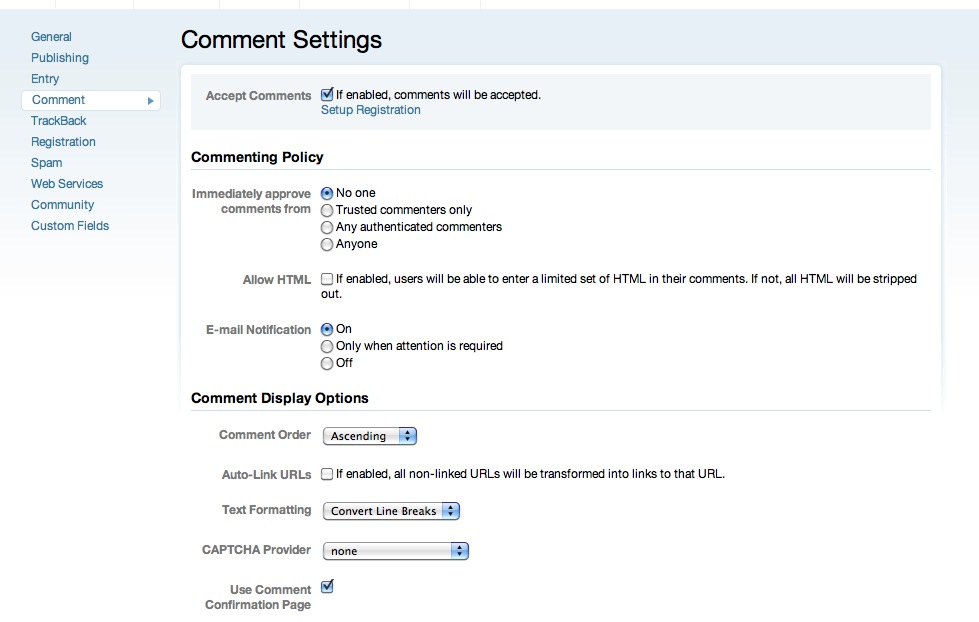
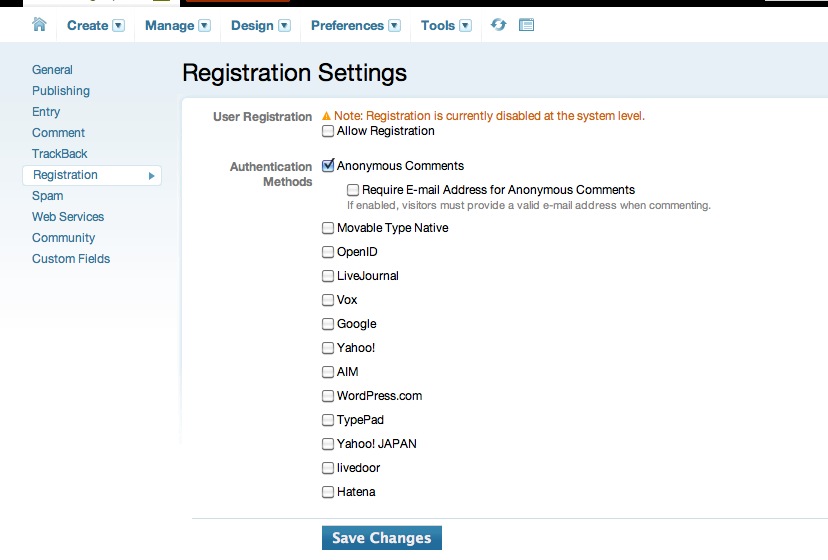
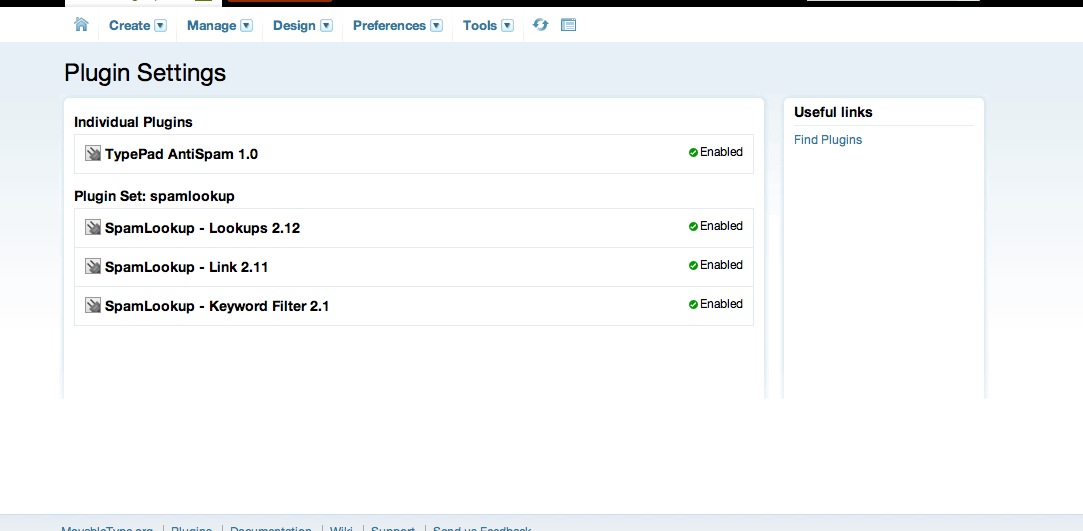
This was because the Comment, Captcha, Registration and Spam settings were in conflict with each other. I fixed it by using the settings shown below. Try turning off Captcha, make sure you have upgraded to Movable Type 4.37 or later. Then adjust settings as shown below.
You may have to temporarily turn off all commenting, and save, then turn it on again after adjusting settings to get it to work.
Many thanks to Mihai Bocsaru for the solution.

September 2, 2011
OS X: Manually index a drive with Spotlight
By default, Spotlight indexes local drives. However it is possible to force it to index networked AFP (Apple File Protocol) volumes as well.Open Terminal, and type
sudo bash
It will ask for your password. Then at the bash prompt, enter
mdutil /Volumes/AFPvolumename -i on(replace AFP volumename with the name of the drive you want to index. Many thanks to sowattmusic for this tip.
mdutil /Volumes/AFPvolumename -s
for example
C:\Program Files\PHP\v5.2;or
C:\PHP\;
Search for and comment out doc_root if it isn't already.
; doc_root =
Install FastCGI
Download FastCGI for IIS
Detailed instructions on setting up FastCGI on IIS
Make sure the extension is in the %windir%\system32\inetsrv" directory, for example:
C:\WINDOWS\system32\inetsrv\fcgiext.dll
Find and open C:\WINDOWS\system32\inteserv\fcgiext.ini
The editable sections are toward the bottom of the file. Find the [TYPES] section. This section maps file extensions from the URL with FastCGI applications. Read the examples and add the mappings needed for your setup.
Example:
[Types]

php:/W3SVC/364137164/Root=PHP52_via_FastCGI

php=PHP52_via_FastCGI
Example:
[PHP52_via_FastCGI]

ExePath=C:\Program Files\PHP\v5.2\php-cgi.exe

InstanceMaxRequests=10000

ActivityTimeout=600

RequestTimeout=600

EnvironmentVars=PHP_FCGI_MAX_REQUESTS:10000,PHPRC:%ProgramFiles%\PHP\v5.2