July 31, 2006
History of Israel in a nutshell
A brief summary of the Arab-Israeli conflict for those who don't have the time to go into the deeper details.
Excellent 5 minute Flash presention on the history of Israel
July 24, 2006
Create multi-sco learning modules using the Reload Editor: Part III
Reload Editor Tutorial Part III - Adding Attributes
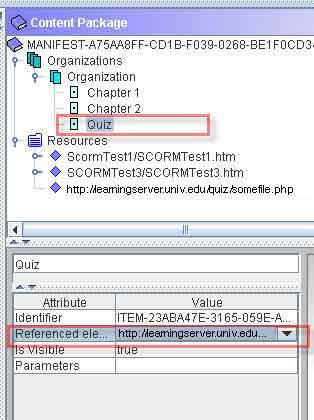
- Once you have added some resources, they become available to select in the Referenced elements menu in the Item's Attributes.
To associate an item with its resource, under Organization, select the item. Its Attributes appear below.
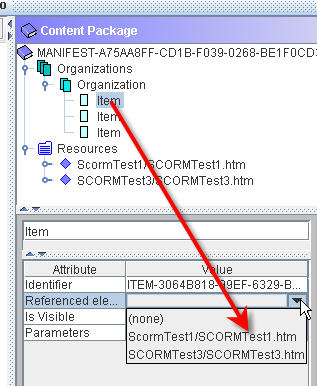
- You may change the item name at the top of the attributes area to the title of the SCO.
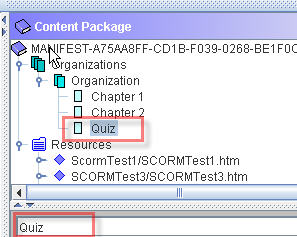
- You will notice in the example shown we have three items, but have only 2 resources listed so far. The third item has no resources to choose from. This is because we are going to add a quiz resource, which cannot be imported as we did with the other resource files, since it is a dynamic page which does not actually exist on the server. All we have available for this resource is a URL, which can be used by creating a new resource:
Right-click the Resources icon, and select Add Resource.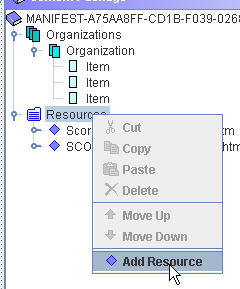
Paste in the full LMS launch URL of the quiz or other dynamic content.
[Note on Questionmark Perception: If you are adding a Questionmark Perception quiz here, you may generate the complicated SCORM launch URL using the Perception Content Packager.]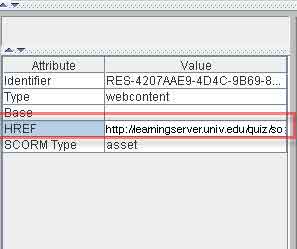
- Now the URL you pasted in is available to be associated to the item.
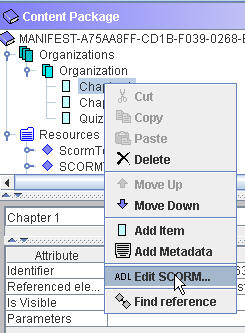
- Add SCORM sequencing information by right-clicking each item and selecting Edit SCORM
- Enter the mastery score for each item as shown. Use 0 for items that should act as if they are unscored.
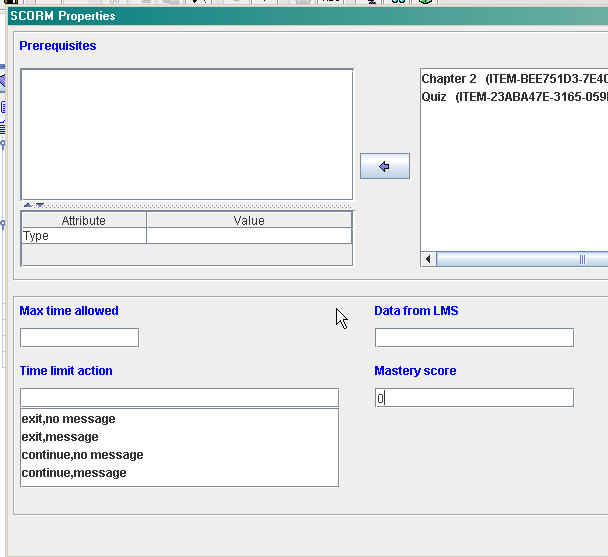
- Use 80 or whatever is appropriate for scored items.
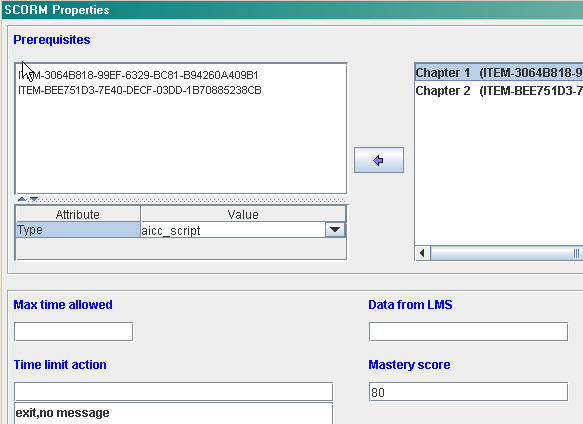
Before using the Prerequisites settings, check to see if your LMS supports this part of the SCORM 1.2 specification. For example they are not supported by SumTotal 6.5.Posted by ellen at 9:29 AM
Create multi-sco learning modules using the Reload Editor: Part II
Reload Editor Tutorial Part II -Create course Structure
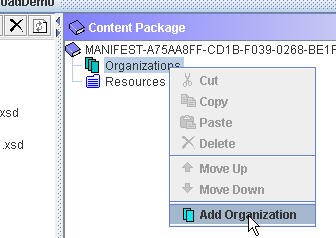
- The item called "Organizations" represents the entire Learning Module. This is the trunk of the course-structure tree you will build. The individual SCO's you have imported will be items within an "organization" that is contained within the main "Organizations" item.
- Right click "Organizations" item. Select Add Organization.
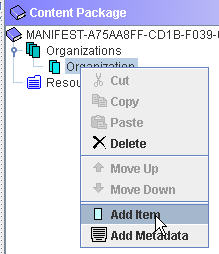
- Next, add an Item (this will be one of the SCO's) to the Organization you just created. Right click it and select "Add Item"
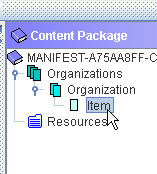
- The package will now look like this:
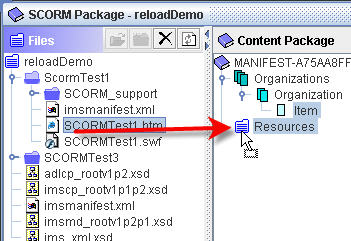
- Next we need to select the resources that will be used to open the SCO. Drag the index page for the first SCO to the Resources folder in the Content Package side:
Create multi-sco learning modules using the Reload Editor: Part I
Reload Editor Tutorial Part I - Create a package and import resources
With an emphasis on use for SumTotal 6.5 and SCORM 1.2
Once you have completed building a single learning module (called a "SCO" or "Shareable Content Object" in SCORM terms), you will probably want to link it together with a quiz or with other learning module SCO's.
To piece together multiple SCO's into a single learning module, you will need to replace the manifests created with each SCO with a single manifest that lists all of them. The Reload Editor is a tool which will allow you to create manifests which aggregate all types of learning modules together into a larger package.
The Reload Editor is available free from http://www.reload.ac.uk. The Reload editor works on Mac or PC, and requires the Java Runtime Environment which will have to be installed on a PC. (see instructions that come with the editor.)
- Create a new ADL SCORM 1.2 package:
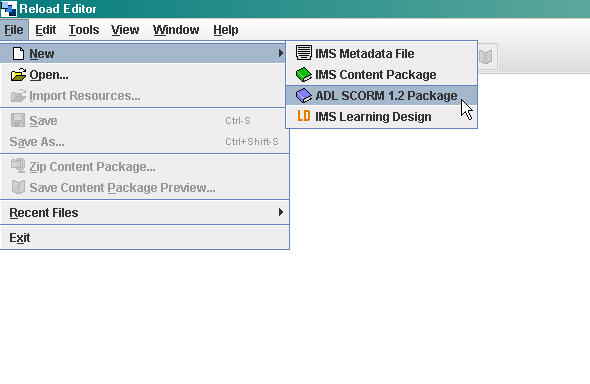
- Save the newly created package file to a new folder. The new file screen looks like this:
- Import the SCO files that will be used in this combined module by clicking the Import icon:
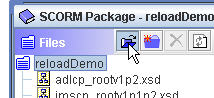
You can also simply drag them into the package Files folder:
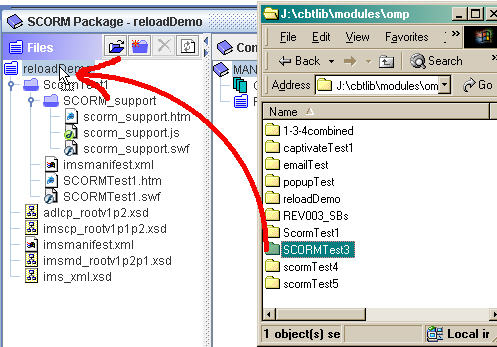
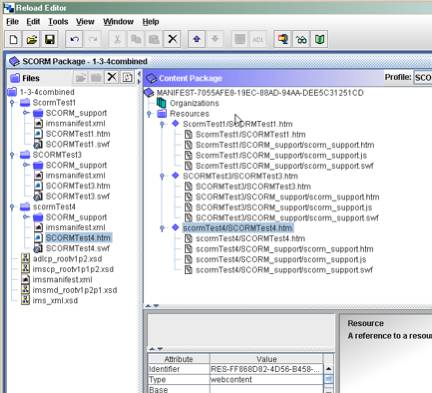
- Your project should now look like something like this:
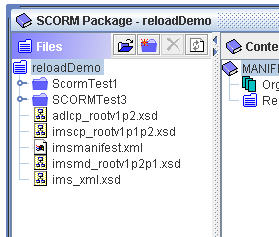
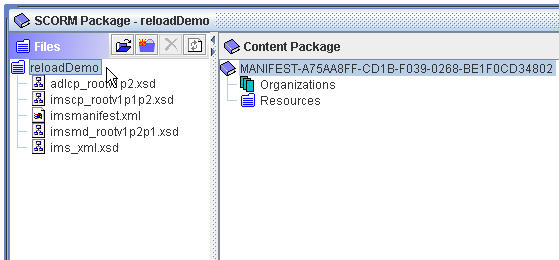
or this example, with three items (shown opened to display their resources)
July 20, 2006
Captivate and SumTotal: 5. Individual Interaction Settings
Anytime you create an interaction in Captivate, such as a click-box, button, or quiz question, and you have turned on Reporting in the Quiz Manager, the interaction will be included in the quiz.
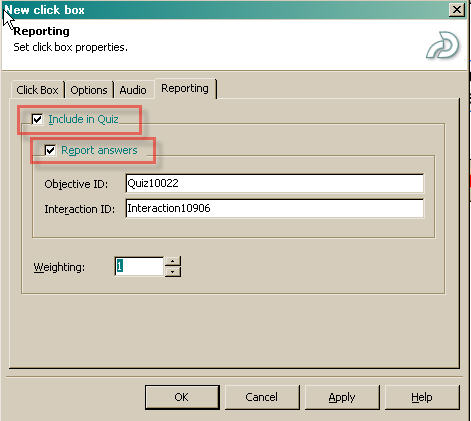
To examine or change these settings on any interaction object, right-click the object, and click on the Reporting tab.
Anytime you create an interaction in Captivate, such as a click-box, button, or quiz question, and you have turned on Reporting in the Quiz Manager, the interaction will be included in the quiz.
To examine or change these settings on any interaction object, right-click the object, and click on the Reporting tab. For items you want to score, select both "Include in Quiz" and "Report answers." SumTotal 6.5 will store results of the interactions, as well as the score. If you want some interactions to be worth more than others you may assign weights to them. Weights are relative to each other, so plan carefully so that your mastery score will work out correctly.
Important Captivate Resources
- Exploring Quizzing in Macromedia Captivate
- The following article is the key to using captivate tracking output in javascript or other frameworks.
Storing Captivate Test Scores in a Database and Exporting Them To Excel with ColdFusion - See thewhitepaper: "Tips and Tricks: Secrets to Macromedia Captivate & SCORM-Compliant Learning Management System Integration."
- Navigation in Quizzes stops Interactions from being reported
- Adobe - Developer Center : Output Options in Captivate � Part 3: SCORM Tracking
- Tune up your Tracking: Getting your Content to Work in your LMS
Captivate and SumTotal: 4. Allowing multiple attempts on a captivate quiz
Note: See also Captivate Quizzes marking "Failed" when quiz is not yet completed for more on how to control Captivate's scoring and completion in an LMS.
Allowing multiple attempts on a quiz requires several items be set up correctly:
- Make sure that allow Backward movement is allowed in the quiz manager.
(but do NOT allow it to add "Back" buttons - it will ask you about this when you select "Backward Movement." - Make sure that "If Failing Grade" in Quiz Manager is set to 2 or more attempts.
Note: Limiting the attempts on a quiz forces the user to close the window and use the Enter the lesson button which I find sort of arbitrary and punitive for no real gain, since they can always get around the specified number of attempts by closing the quiz and clicking Enter the Lesson again.
Limiting the ability to go back and use the Enter the Lesson button would require an enhancement to MLearning.
- Both "If Passing Grade" and "If Failing Grade" should be set to Jump to next slide (see test1 in the attached files), unless you are using separate pass and fail slides, in which case they should jump to the appropriate slides. See test2 and test3 for example.
The slide that you are jumping to should be a sort of path-splitting slide that allows you to choose either "close window", "try again" or "continue on to next section"
None of these buttons' reporting tab should be set to include in quiz.
Alternatively, you could split the choices up into separate "pass" and "fail" slides, with Close Window and Try again on the Fail slide, and Close Window and Continue on to next section on the Pass slide.The "Close window" button executes "parent.window.close()" and closes the window, at least in IE. Other browsers may give permissions errors.
The "Try again" button will send you back to the first slide of the SCO, until you hit the maximum number of attempts. Then it stops functioning entirely, which is not very graceful from a usability standpoint.
The "Continue on to next section" button continues on to the next SCO.
If you want separate pass and fail slides, see "test2" as an example in the downloaded files.
- Re-scoring may fail sometimes. I have been able to get it to fail to rescore occasionally but usually it does rescore upon retrying the quiz. And it will always rescore upon hitting the "Enter the lesson" button and re-trying the SCO that way if the retry within captivate fails.
Captivate and SumTotal 6.5: Part 3. Quiz Settings
Click on the Quiz tab to view the Quiz settings. Quiz settings determine the overall behavior and defaults for the interactions in a Captivate module.
You can override some of the default settings within individual interactions.
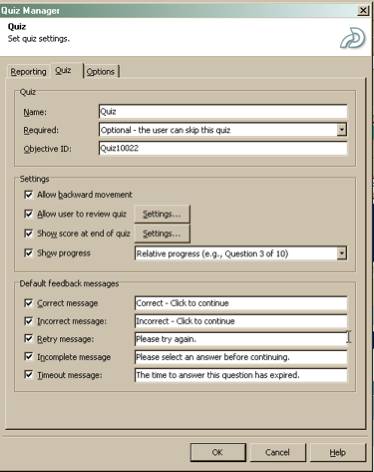
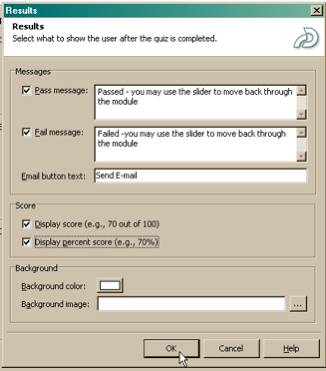
Most of the settings are optional. You can choose whatever you wish, except that since you MUST report a percent score to the LMS, you should probably show that percent score to the user at the end of the quiz if this is a scored or assessment module.
Click on the Settings button next to Show score at end of quiz to configure the way the results will look to the user. The Results dialog will appear:
Captivate and SumTotal 6.5: Part 2. Enable SCORM output
Captivate works well with SumTotal 6.5, but you must be careful to choose the right SCORM settings for exporting your Captivate file. You may set these preferences before you publish, or during the publishing process. Setting preferences before publishing and saving them with the file is probably a little safer, but it can be done either way.
IMPORTANT! Your Captivate module must include at least 1 scored interaction to be SCORM compliant. This can be as simple as a transparent click-box that must be clicked to continue on with the presentation, or it can be an actual interaction that is part of your simulation.
To set the SCORM settings up before publishing:
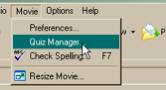
select Quiz Manager
from the Movie menu.
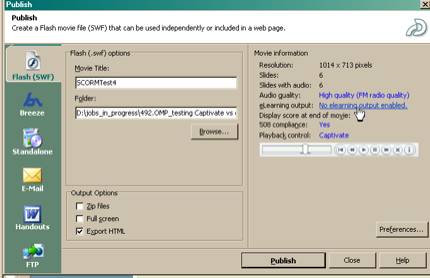
To set the SCORM settings up while publishing: click on the eLearning output link in the Publish dialog
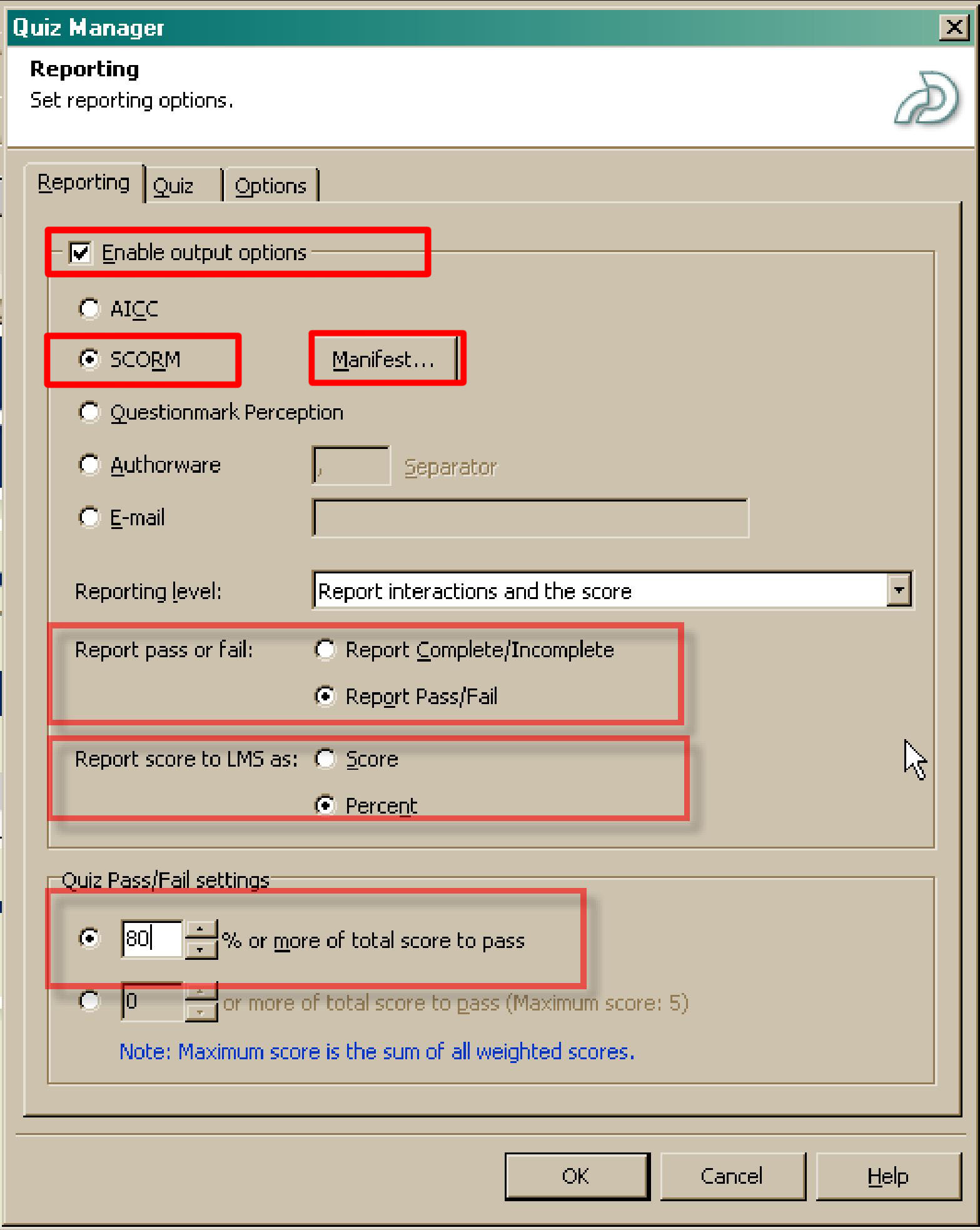
The Quiz Manager will appear. You will see the Reporting settings first.
Enable Output Options
Click on Enable output options, and SCORM as shown.
Reporting Level
If this is an assessment (graded) module, and you want to report on each interaction that the user performs, select Report interactions and the score from the drop-down menu. If this is a non-interactive demonstration module, or if you don't want interaction data recorded, select Only report the score as shown below:

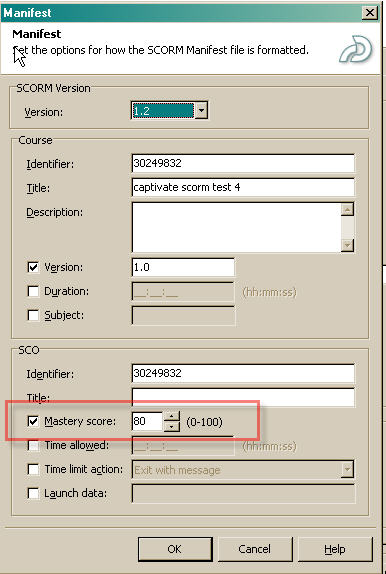
For an assessment (graded) module, choose Report Pass/Fail. For a non-graded module, you may choose either Complete/Incomplete or Pass/Fail (see quote below). If you want users to always pass no matter what they do (as long as they finish reading through the module), enter "0% or more of total score to pass," and ALSO be sure to set the mastery score (under the "Manifest" button) to 0. Otherwise the manifest setting will override the Captivate setting. i.e., Captivate will report Pass, but the LMS will report Fail. From "Tips and Tricks" whitepaper:
- "When publishing with Captivate, if you select complete/incomplete, and the user
fails or fails to finish the lesson, the valueof ���incomplete��� will be reported to the
LMS. In the event that the user completes or passes the lesson, the value of complete� will be reported to the LMS. Likewise, if you select pass/fail, then the
value of ���pass��� will be used instead of ���complete��� and the value of fail� will be
used instead of ���incomplete���."
The Manifest dialog will appear. SCORM Version is always 1.2 for MLearning. Course: If you already know the LMS catalog course code number, you may enter it under Identifier, using an underscore in place of a hyphen. If you don't know the course code number, just let Captivate determine a unique number for your course. We will add the course number later, in MLearning. SCO: SCO's are the individual chapters or modules within a larger course. If your course consists of only one Captivate file, then your course has one SCO. If your course contains several pieces, for example: several captivate files and a questionmark quiz, it has multiple SCO's. Each SCO can use the same number as the Course, with a distinguishing digit added to the end. You can fill in the Title of the course and sco as desired. Duration and Subject are both optional: duration simply describes how long it takes to complete the course. Subject would be the general subject category this course fits into. Be sure to set the Mastery score the same as the Quiz Pass/Fail settings in the previous dialog. Time allowed, Time limit action are optional and should only be used if you wish to set a time limit on the course.
Captivate and SumTotal 6.5: Part 1. Setup
I'm involved in producing some Captivate-based assessments for use with SumTotal 6.5. There are many settings and variables that must be set correctly to get everything working to our specifications, so it took some serious testing to figure out the best settings. Hopefully this will shorten the time for anyone with similar needs.
The requirements: We are producing competency-based learning modules and assessments. Users must complete the multi-SCO assessment with a score of 100%. They aren't that easy, so it is expected that they will need several if not many tries to complete one SCO. Each interaction within any given SCO will allow three tries before the slide moves on. Each SCO will allow an infinite number of tries.
Remove SCORM bookmarking functionality
Since our users are allowed to take the module more than once, SCORM Bookmarking as implemented by Captivate causes problems. The SCORM scripts written for Captivate do not distinguish between "this SCO was finished" and "this SCO is still in progress" for purposes of deciding whether or not to suspend (save a bookmark).
As a result, if a user completes (and fails) a quiz once, when they re-launch the SCO, they are automatically sent to the last bookmarked page which is usually the end of the module. This is all very confusing for most users, so we removed SCORM bookmarking in this case.
Andrew Chemey, one of the leading experts on Captivate, made available some "no-suspend" templates. I've lost the original link, but you can download them here, until I find original URL again. To use them, unzip them and use them to replace your captivate publish templates which are located here on your computer:
C:\Program Files\Macromedia\Captivate\Templates\Publish\SCORM.htmand
C:\Program Files\Macromedia\Captivate\Templates\Publish\SCORM_support\scorm_support.js
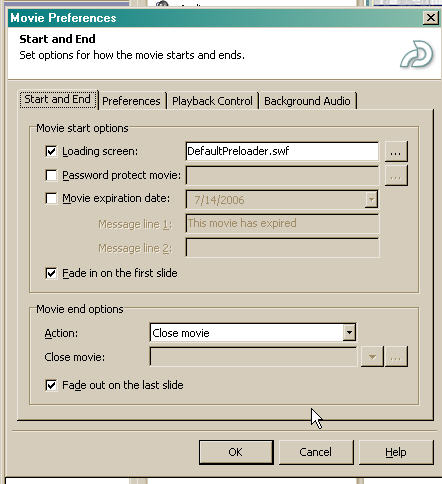
Set movie to "exit" upon completion.
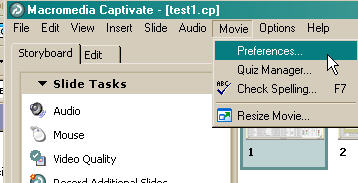
The "exit" command is what sends the LMSFinish to The LMS. The LMSFinish command allows automatic SCO sequencing to take place: when one SCO is completed, the next will take its place in the window. To do this, select Movie: Preferences and select Close movie from "Movie end options"
Important Tech Note on Next buttons:
Next buttons may cause scoring problems!!
See this note on Next Buttons. I have not verified this yet with testing.