May 26, 2003
Dreamweaver, Lists, and CSS
Dreamweaver sometimes has trouble assigning styles consistently. When you select some text in Design View, and apply a CSS style, Dreamweaver seems to make a guess as to which element the style should be applied to, and doesn't always guess right.For example - try this: Paste this into the BODY area of a new Dreamweaver HTML document.
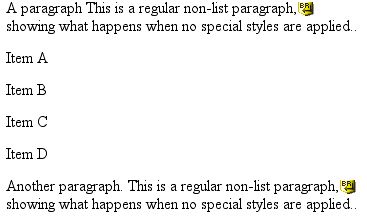
It should look like this:
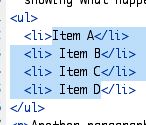
 Next, in Design View, select all 4 Items, and click the "unordered list" icon in the properties palette. The code for those items should now look like this:
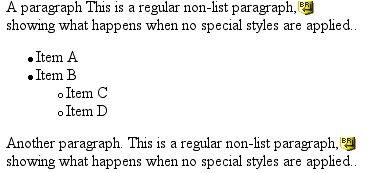
Select Items C & D, and indent them. The text will now look like this:
Now, we are going to style the text with a custom style, and create a special treatment for lists in that style.
Paste this into the HEAD area of the document:
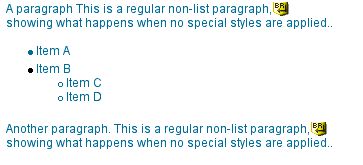
Download Code Here Back in Design View, select the entire block of text and apply the "text" style using the CSS palette. The resulting display should look like this (Safari):
or like this (IE 5.5 Mac):
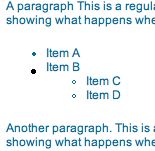
You'll notice in either browser, Items A and B look different. The code looks like this:
In Item A, the style "text" was applied to the <li> tag, while in Item B, it was applied to a lt;span> generated by Dreamweaver. The variation in display probably results from the fact that <li> displays by default as "list-item" while lt;span> displays as "inline." So the marker is styled along with the rest of the "list-item" box in Item A, and not styled in Item B.
This is one case where I've found it much safer to code by hand to avoid complicated messes.
The changing style of kiddie art
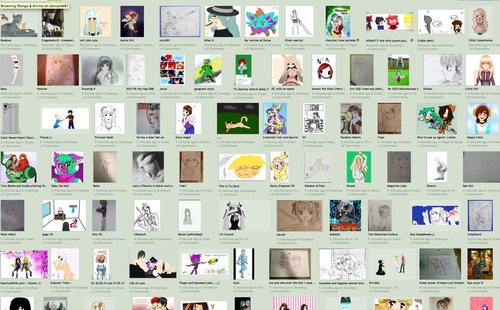
I'm sure I must be the last one to have noticed the nearly complete takeover of the anime style in kid's artwork these days. In a greek diner near my house, they hang up the placemats children have decorated with their crayon drawings. About 50% of them, likely all that were done by kids over the age of 8, are of various anime-style figures.
Amazingly uniform style! Most of them are well drawn, too. (But perhaps the restaurant owner just throws out the bad ones?)
Take a look at Deviantart's Manga/Animé category for examples:
May 24, 2003
The New Art Groups
An exciting development for art lovers is the emergence of web-based artists communities and art groups that have sprung up in the last few years. Ranging from simple gallery-hosting services to extremely interactive sites that allow commentary, ratings, reviews, chat, contests, and facilitate communication between artists. The speed with which artists can interact and see each other's work allows rapid stylistic cross-pollination and collaboration.
Deviantart.com an extremely popular art community, also has a "mosaics" feature where artists collaborate on new pieces using a grid system. Someone decides on a theme, and starts handing out grid squares to volunteer artists. Some of the results can be seen here: Mosaic Section of Deviant Art
Deviantart's popularity probably stems from the instantaneous feedback you get when you upload an image. Often, a new item will start collecting comments from the huge viewership immediately. Interacting with your "fans" is easy, and you can see what other artists they like, and what they have uploaded or written. Quality varies, but the energy of the site is addicting. It's just way too much fun.
Raster is less of a free-for-all. New members are recruited by the group, and the overall quality is very high.
Abnormis displays art by their featured artists. Anyone can submit artwork. Portfolios are reviewed by the staff once a month, and 5 new featured artists are chosen.
The competitive side of art is brought out in the "Photoshop Tennis" matches hosted by Coudal.com I particularly like this match, featuring some of the most beautifully rendered insults I have ever seen: Schroeder/Grosh Match
May 21, 2003
Installing PHP/mySQL scripts - Tips for Designers
or ...
"Just Enough about Unix to get into trouble..."
Determine type of server:
I've found that PHP scripts work more reliably on Unix servers than NT. Also, be sure that the server is not running PHP as a cgi script. It really doesn't work as well. How do you tell?
phpinfo
Upload a little file containing this code:
<? phpinfo(); ?>
Name the file "phpinfo.php" and then view that page online in your web browser. This is a php script that returns all the information about your server environment. In the first table of information, you will find "Server API." This should be "Apache." If it says "CGI" you are in trouble. However some things will work fine in this setup, so it's always worth a try.
Linefeeds:
Set your HTML editor, including text editors to use [b]"Unix Linefeeds"[/b]. Generally, the default setting will be the one for whatever type of machine you are on, so be sure to check this. Remember this tip! It is very easy to forget to check this preference if you are working on a new setup, or have reinstalled software. The wrong linefeeds result in messed up code which the server cannot interpret.
Decompression software:
Stuffit Deluxe will expand almost any combination of tar, gz, zip, including nested compressed archives, and is well worth getting.However, it is always best to check that nothing is left unexpanded. Also, it is important to check the preferences in Stuffit and make sure that under "Cross Platform" it is set to "never" convert to MacBinary. If you are using the True Finder extension, make sure the preference is set there as well.
The correct unix-geek alternative to this procedure (and to most of the following) is to ftp the tarball up to the server, telnet in, and decompress the files on the server. In a designer's work environment though, there are many other tools that come more readily to hand (and to mind). Especially since you will probably want to edit several of the files from within your local html editor, such as config files, and html templates, rather than using a terminal and Pico.
Shut off automatic features:
If you are using Dreamweaver or GoLive,or any other WYSIWYG editor, turn OFF all automatic html correction features in the preferences. In Dreamweaver this is under "Code Rewriting" in the preferences. In many scripts, especially templates, there are many times when an entire page of html will be un-terminated (tags are not closed), and that's "OK." The last thing you want is for a helpful program to fix all that for you.
Special note for editing perl scripts:
Do not use Dreamweaver for editing these, even for minor changes. Use bbedit or some other text-editor. As of this writing, Dreamweaver has a nasty habit of corrupting perl code.
File types:
When you ftp files to your server be careful that php files go up as ascii, not binary. Dreamweaver will often make a mistake on any extension that it doesn't understand, so either change the extension temporarily, or use an ftp client that allows you to specify ascii, binary, or whatever. If you aren't sure if a file is binary or not, open it in bbedit: if it looks like gibberish, it's probably binary.
Paths:
Phpinfo is also useful for another reason. Many times you have to determine the exact path from your server's "Home" to a given directory in your site.
Place a phpinfo script in the directory in question, and browse it (http://yourdomain.com/yourdirectory/phpinfo.php). Look way down the page for the "PHP Variables" section. There will be an entry for "_SERVER["PATH_TRANSLATED" which may say something like: "home/yourname/html/yourdirectory/phpinfo.php." This is the path to the file phpinfo.php.
Permissions:
It is possible to set permissions using your ftp client which I often find more convenient than telnetting in and chmod'ing everything. GoLive also supports this, but Dreamweaver does not. For a good article explaining permissions read: Understanding Unix permissions and chmod.
Why things don't work:
This leads to another point: When things aren't working, it's usually either the wrong path, or the wrong permissions
Error messages, the key to reality:
How do you tell? You read the error messages very very carefully. A path problem means the program can't find a requested file (often an include) and errors out. Permissions problems will usually result in a file or folder not being able to be read or written to, as when a gallery needs to access a folder to add images.
Long filenames:A Mac-related problem is that in some cases, the unix file names are too long, and the finder will truncate them as you decompress the archive. Then any requests for "fooblahblahblahblah.php" will turn up empty. Simply correct the file name on the remote side using your ftp program.
Managing your databases:
Unless you are using your own server, it is very likely to be set up so you cannot log in to your SQL database from a remote location. This means you can not use MacSQL or other desktop based database management utilities since they will be denied access. The solution to this is to install and use phpMyAdmin for administering the database. This is simple to install. Only one or two lines need to be edited with your database login and password information. This will often be preinstalled for you by the server administrator.
May 18, 2003
Selective JPEG compression in Photoshop
Despite the prevalence of high-speed connections these days, there are times when it is necessary to keep page-download times short. Some target audiences still primarily use dial-up systems.I had just such a project when designing a home-page for a hospital site. A large percentage of visitors to the site have old computers and slow dial-up connections. A typical user is a middle-aged woman searching for health information for either her parents or children, and usually using a modem. We did not want slow page load time to discourage these visitors from getting the information they came for. Our goal was to get the load time for the home page to under 10 seconds. The problem was, the home page is content-heavy and features a large photo of hospital volunteers welcoming you into the hospital atrium. The photo :

(Click on image to see it at full size)
has a lot of detail, and includes text composited into the image. The figures in the photo are small enough so that any JPEG artifacts (noise created by the compression process) will cut right through key features, like the eyes or mouth. An additional consideration is that the photo was shot in low resolution on a digital camera and composited with the atrium shot, so the image has already lost a bit of detail through processing. The uncompressed Photoshop image is 292K - at roughly 4.0K/sec (a charitable estimate on the usual 56K line) it would take 73 seconds to download the image, let alone the rest of the page.
However, in our initial attempt at compressing it down to a size that would download quickly, we found that we were losing detail and clarity in the text and the faces. In order to maximize compression AND image quality, we turned to selective JPEG compression. Analyze the problem areas JPEG compression is the preferred format over gif for photos, particularly where there are blended shadows, or color gradients, because it is not limited to a 256 color palette so will not band (as much) or dither, and often produces a much higher compression ratio.
However, since it is a "lossy" process, at higher compression levels the image will begin to degrade. Subtle values are likely to be replaced by chunks of color, and detail will be lost. "Artifacts of compression " become more noticable, and will create unpleasant changes in your image.
In order to get the highest level of compression possible, with the least amount of damage to critical areas of the image, it is necessary to selectively compress different regions at different settings.
To begin the process you will need to analyze your image for the areas most likely to degrade under high levels of compression. With JPEG compression, this is usually around the edges of things, where colors and values contrast. The border of a dark shape on a light background, the edge of text, and subtle changes in value will usually suffer the most.


quality=100 quality=10A quick way to spot problem areas is to make a test jpeg using the most extreme quality setting. A comparison of the maximum quality=100 vs. the minimum, quality=10 shown above demonstrates the loss of quality in the text, the shadow area, and the face of the woman. The image is slightly enlarged to show the transformation better.
In the next side by side comparison, the quality differential is somewhat less (quality=100 vs. quality=27), but the woman's face is still unacceptably soft and blurry in the low quality version, enough to cause an unwanted change in her expression. The text has more noise around it, and the shadow area is lumpy looking. With images of this size, so few pixels are used to actually define the details that we don't have extra pixels to spare, so we can't afford changes like this.
 (Click on image to see it at full size)
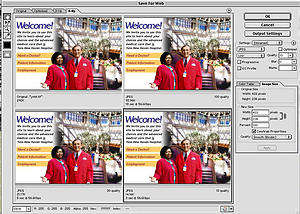
In the next test, 4 settings are compared side by side, at actual size. Based on these it appears that the text and face quality setting should fall somewhere between 100 and 30 - probably a "medium or high " setting, but the background atrium area can undergo very extreme compression without ill effect.
(Click on image to see it at full size)
Create a Compression Mask
Based on the test image, choose areas to hold out from the highest compression settings. In this case the text, the faces, the shadows, and the edges of the figures were selected. Create an alpha channel or mask where the areas that are to be LESS compressed are white, and the areas that can be MORE compressed are black.

(Click on image to see it at full size)
The mask used for the hospital image is shown above.

(Click on image to see it at full size)
A composite of the mask and the image are shown above, to make it clear what areas were protected from high compression. As you can see, the woman's shape is outlined a few pixels outside her actual edge. This is to prevent the gray "pixel spread" that sometimes occurs around high-contrast edges at the boundaries of compression areas.
Once an alpha channel is created, select File: Save for Web. If you only want to apply this special compression to a single slice, be sure to select that slice before proceeding.
Use the Compression Mask to Control the Quality Settings
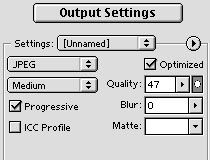
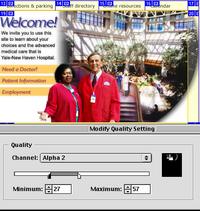
In the Output Settings area of the Save for Web window, select JPEG medium. To apply the mask, click the Mask button: the one with an oval in it, to the right of the Quality box.
(Click on image to see it at full size)
This brings up the Modify Quality Setting dialog. Move the Maximum slider to the lowest level where the quality-sensitive areas of the image look good. Move the minimum slider to a level where the rest of the image is still acceptable. Save the image.

(Click on image to see it at full size)
The resulting final image is shown here. It weighs in at 27K, still a little large for our 10 second total load-time goal. The remaining time saving was achieved by splitting the page into two separate tables, side by side, using align="left" to force them to stick next to each other. This caused the left side, containing the nav bar, to display first, so that people with short patience could start clicking without waiting for the heftier content section to load.
May 17, 2003
And a third way to post code in Moveable Type
Thanks to Crys Clous, there is a new plugin for Movable Type that adds an option to the Text Formatting dropdown in the entry editing page, called QuickCode. When selected, it allows you to use the BBcode tags, like [code][code], [img], [b], [i], etc. [/code]
[b][url=thedesignspace.net]This is some code[/url] [/b] It's available for download here
May 16, 2003
A couple of ways to post code in MoveableType
Thanks to the helpful folks on the MoveableType support forum I now have a couple of ways to post code in my entries.NOTE: because my new multi-column layout creates issues with form fields in Safari, I've also included links to download the code.
1. Install Brad Choates macro plugin, and use it to escape the HTML. Insert this into your templates:
CODE (or download it here)
<MTMacroDefine pattern="m/\[code\](.+?)\[\/code\]/si">

<pre><MTMacroMatch position="1" encode_html="1"></pre>

</MTMacroDefine>
run your code through this page: Accessify Quick Escape" and then surround it with a textarea:
CODE (or download it here)
<textarea cols="40" name="text" rows="7" wrap="virtual"> ... </textarea>If using this method, select "Text Formatting: None" or you will end up getting line breaks inserted into your escaped code by Moveable Type.
OSX and CD drives that refuse to open
After a recent OSX update, I noticed that there are times the CD drives decide to stop functioning. The keyboard "eject" button no longer works, discs that are in them at the time disappear from the finder, and none of the workarounds work for me except to reboot and hope they come back.
However I've found something that does seem to work sometimes - DiskTracker's "batch scan disks" function will sometimes kick out a disappeared CD when it starts up. It worked on one Mac, but not on another. I am hoping the next revision of the OS will cure this miserable "feature!"
May 8, 2003
OSX and .htaccess files
The other day, I was trying to install some script - and needed to edit an .htaccess file that was supposed to be inside the archive. I couldn't find it - because it was invisible! I forgot that OSX is Unix based.
Here are some instructions to make those files visible on the local side, and still be able to test your site in local mode. (many thanks to Didier Laget for this tip!)
- Open your httpd.conf file.
- Look for the following expression : AccessFileName .htaccess
- Remove the dot left of htaccess.
- Save the file.
- Restart the webserver.
Now you can edit htaccess, it will work, and it will NOT be invisible!
Script Errors in MS Producer
We use MS producer quite a bit for synching video to powerpoint, although since it's a free application, it isn't terribly well supported by Microsoft. It's only useful for an environment that is mostly Windows based, since presentations made with it won't play on anything but IE for Windows.
There was a problem with a presentation that would play fine on some computers, but would start up normally then stop with a script error before playing any video. It turned out that I had associated some of the Table of Contents entries with points on the video, rather than just with slides, as I normally do. Apparently machines running older versions of Windows Media Player (6.0.4) don't play those kind of script commands. The machines that did play it had been upgraded to WMP 9.