November 30, 2004
iTunes burning songs out of Order
A usability issue with iTunes:
You may think the first column, with index numbers, is the track number. It turns out that it's just an arbitrary identifier assigned to the tracks, no matter WHAT actual order they are in - alphabetical, date, track number, etc. If you don't have the column for Track No. enabled, you may not even realize it exists.
Right click on any column name in the playlist, and you will see a list of all possible columns. Make sure Track Number is checked. Then select that column and make sure that the little arrow for it is pointing UP (small end up!). Then burn the CD.
Thanks to "D.R. Mac fan" on MacOSXHints forums for this.
Screenshot of Windows Media Player shows black instead of video image.
When I opened a client's Word document containing a screen capture of a video player (she was trying to show me one frame of the video), the image of the video screen was blank. This turns out to be because when the video plays, it is actually playing in an overlay produced by hardware acceleration, which is NOT captured by most screen capture programs. To capture screenshots from video, you have to turn off hardware acceleration.
To disable it on Windows XP, select Run/Settings/Control Panel/Display
Then in the Display Properties window, select the Settings Tab. Click the Advanced button on the bottom of that panel. Then click the Troubleshoot tab.
Then, under Hardware Acceleration, drag the slider to None, and hit the OK button at the bottom of the window.
Thanks to the folks at any-capture.com for this one.
November 28, 2004
My experiences with comment spam
One day, about 6 months ago, spam comments started showing up in this blog, with generic messages, advertising poker sites, porn sites, or weird search sites that seemed to be clearinghouses for other spam sites. After doing some research I first changed the name of the comments and trackback script files in my MoveableType setup. This pretty much stopped the spam.
Then later I installed MTBlacklist as well. However I noticed after a while that I was getting fewer real comments, and assumed that the name change on the comment script might have made trouble for the real commenters, although when I tested it, it seemed to work.
So, I change the name of the script back - and soon was deluged with spam comments for http://www.poker-texas-hold-em.info, which strangely is just a loop page that links only to itself. I am not even sure how that link benefits the real poker site which must surely exist somewhere. The world of spam is byzantine, and they seem to be coming up with new and better ways to "get" us every day.
In any case, MTBlacklist functioned well in allowing me to delete all instances of those comments, but I decided I'd rather not even have to bother, and changed the name again. Since then, I only get real comments.
MidiSport Midi Interface not recognized by iBook
I found an old MidiSport 2x2 USB midi interface by M-Audio that we had previously used successfully with an older computer, running Finale.
When it was hooked up to a new iBook running Panther, it was not recognized at all by Audio-Midi Setup (Apple's new replacement for OMS). It did not appear at all in the configuration screen. It turns out that it needs a driver, available here. After installing the driver, without even a restart, it shows up and functions perfectly in Finale's Hyperscribe tool.
November 26, 2004
Powerpoint and video
Successfully incorporating video clips into powerpoint isn't hard, but the process will go more smoothly if you consider how the presentation will be delivered before inserting the video file. This tutorial is mainly oriented toward the PC version of powerpoint, and Windows Media Player, although I may add notes on the Mac version and Quicktime soon.
Let's go over some possible scenarios:
Scenario 1. You create and present the powerpoint presentation on your own laptop.
If the .ppt file is not going to be moved from its current position on the laptop, you only have to ensure that the video clip actually resides on your laptop, so that it will be available when you are giving the presentation.
So before inserting the video file, make sure that it is indeed on the C drive, or more simply, in whatever folder the powerpoint presentation is in, and not on a networked drive somewhere. This may seem obvious, but I've found that many users are not at all clear on what drives they are using.
The important thing to remember is: Powerpoint only inserts a pointer to the clip into the presentation. The pointer specifies the path to the current position of the clip, relative to the powerpoint file. This pointer will NOT be updated if the presentation file or the video file are moved. Powerpoint will continue looking for the file in a location it can no longer reach. Easiest solution: start with the video file in the same folder as the powerpoint, THEN insert it into the presentations, then move both files into the same folder on the laptop
Scenario 2. You develop the powerpoint on your desktop computer and move it to a laptop or CD:
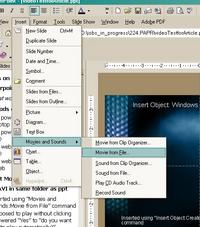
Use the "Insert Movies and Sounds" command.
For the same reasons as above, before inserting the video clip into your Powerpoint presentation, move it to the same directory as the powerpoint file, or at least to a relative path that you can duplicate on the laptop. Windows does not keep track of changing file locations, and will not be able to find the clip if it does not remain in the same relative location to the Presentation as when it was inserted. When you move the presentation over to the lapto, be sure to move the video clip as well, into the same folder again, or to the same relative path.
Scenario 3. You develop the powerpoint on one computer, then move it to the web.
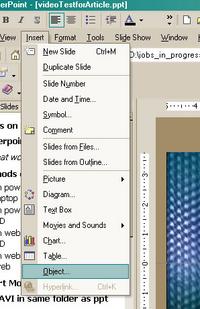
Use the "Insert:Object:Create New: Windows Media Player" command
You will probably need to put the video clip on a streaming server if a lot of people will be viewing the presentation at once. However, you can't use the standard "Insert: Movies and Sounds" command for a streaming file. You need to insert a Windows Media Player object, which can be set to point to either streaming or non-streaming files. To use this player, select Insert:Object: Create New: Windows Media Player. Once the player appears on the slide, right click it, select "Properties" from the popup menu, and in the space next to "URL" type in the URL (mms://your.streaming.server.com) of the streaming file, OR type in the URL of the .asx file that points to the streaming file.
November 17, 2004
Dreamweaver MX 2004 Slowdown after re-install
I had forgotten all about this issue, but was reintroduced to the Dreamweaver Slowdown after installing it on a new system drive. On opening an old document, typing slows to a crawl, even when there isn't much on the page.
The answer is to install the updater, located here. This updates Dreamweaver 7.0 to 7.1 (on a mac at least) and apparently fixes the slowdown. What it does NOT fix is some funky aliasing around letters upon selecting text.
November 9, 2004
Powerpoint Narration Does Not Play Automatically
Sometimes, even if you set a narration or sound file to play automatically when you first add it, it will not play until you click the speaker icon on each slide. When you look at the Custom Animation settings, it may look like it they are set correctly as Start with Previous but there is a second setting which also must be correct for this to function properly.To fix this setting: click the speaker icon for your sound file. Select Custom Animation. Click on the downward-pointing arrow to the right of the listing for the audio file ("Media_4" in the screenshot below").
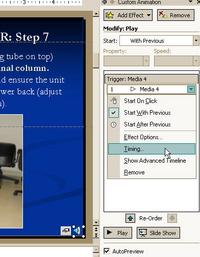
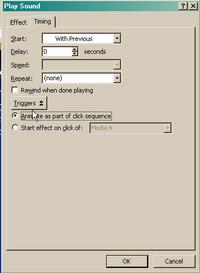
Select Timing. Make sure Start With Previous is selected (it will be if you chose Play Automatically when recording your Narration. If you can't see the bottom two lines which read Animate as part of click sequence and Start effect on click of: then click the Triggers button to show them. Select Animate as part of click sequence. Hit OK, and it should now start playing automatically when the presentation is played, or when imported into Producer.
November 2, 2004
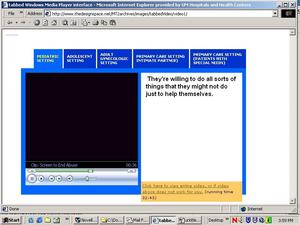
A tabbed web-based interface for Windows Media Player
I put this tabbed interface together to show either isolated pieces of a single video or several separate video clips, together with captions. The way the interface is set up, you can use the captions to enumerate bullet points, ala Powerpoint, instead of the usual transcription of the audio track.
A screenshot of it in its "well-behaved" form in Internet Explorer for the PC is below.
If you'd like to test it in different browsers, and maybe help me troubleshoot the javascript that addresses the embedded version:
Click here to see the interface in action
This only works well so far in Windows IE 5.5 and later. Working on better compatibility.
November 1, 2004
How to do a redirect from an old webpage to a new one.
You can look this up anywhere, but I find myself looking it up often enough that I thought I'd post it here.
To make an automatic redirect, simply add this to the head section of an html file that is sitting in the old location:
<META HTTP-EQUIV=\"Refresh\" Content=\"5; URL=http:/new.location.com\">
where the "5;" refers to the number of seconds before the redirect happens.