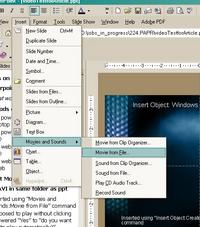
 Use the "Insert Movies and Sounds" command.
Let's go over some possible scenarios:
Scenario 1. You create and present the powerpoint presentation on your own laptop.
If the .ppt file is not going to be moved from its current position on the laptop, you only have to ensure that the video clip actually resides on your laptop, so that it will be available when you are giving the presentation. So before inserting the video file, make sure that it is indeed on the C drive, or more simply, in whatever folder the powerpoint presentation is in, and not on a networked drive somewhere. This may seem obvious, but I've found that many users are not at all clear on what drives they are using.
The important thing to remember is: Powerpoint only inserts a pointer to the clip into the presentation. The pointer specifies the path to the current position of the clip, relative to the powerpoint file. This pointer will NOT be updated if the presentation file or the video file are moved. Powerpoint will continue looking for the file in a location it can no longer reach. Easiest solution: start with the video file in the same folder as the powerpoint, THEN insert it into the presentations, then move both files to the laptop, into the same folder..
Scenario 2. You develop the powerpoint on your desktop computer and move it to a laptop or CD:
Use the "Insert Movies and Sounds" command.
For the same reasons as above, before inserting the video clip into your Powerpoint presentation, move it to the same directory as the powerpoint file, or at least to a relative path that you can duplicate on the laptop. Windows does not keep track of changing file locations, and will not be able to find the clip if it does not remain in the same relative location to the Presentation as when it was inserted. When you move the presentation over to the lapto, be sure to move the video clip as well, into the same folder again, or to the same relative path.
Scenario 3. You develop the powerpoint on one computer, then move it to the web.
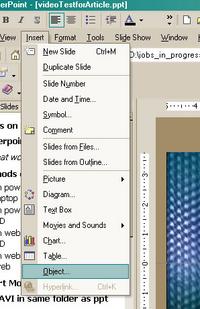 Use the "Insert:Object:Create New: Windows Media Player" command
You will probably need to put the video clip on a streaming server if a lot of people will be viewing the presentation at once. However, you can't use the standard "Insert: Movies and Sounds" command for a streaming file. You need to insert a Windows Media Player object, which can be set to point to either streaming or non-streaming files. To use this player, select Insert:Object: Create New: Windows Media Player. Once the player appears on the slide, right click it, select "Properties" from the popup menu, and in the space next to "URL" type in the URL (mms://your.streaming.server.com) of the streaming file, OR type in the URL of the .asx file that points to the streaming file.
If using Windows Media file for your video, use the Insert: Object command to insert a Windows Media Player into the document. want to use the "Save as Web page" option in powerpoint, and
Insert Object: Windows Media Player
Inserted using “Insert:Object:Create New: Windows Media Player” command
Right click player, then select Properties and type in relative URL to local .wmv file in same folder as ppt file. Note: this type of setup will export fine to the web but the wmvfile does not get copied automatically on publishing to web page, to the new “_files” folder. The wmv file must be copied there manually, then this will work.
If many people will be viewing this, you will probably need to use a streaming server. Your video should be converted to Real format, hinted Quicktime or WindowsMedia or FlashVideo depending on what type of streaming server you have available.
If you are going to transfer the powerpoint file to a laptop, or CD the video file must stay associated with the transferred powerpoint file. Powerpoint will not do this automatically for you, the way it automatically copies over narration or images. The key is to copy the video file to the right place when copying the powerpoint file, since this does NOT happen automatically. It's very simple, but not always obvious that you need to do this. Video files are not embedded into the powerpoint file like audio or image files can be.
If you are putting the file on a web server, consider using a streaming server for the video. Performance will be better if many people are viewing the file at once. However it is possible to put the video file on the web server if you don't have access to a streaming server.
Right click player, then select Properties and type in relative URL to .asx file in same folder as ppt file. WMV file is on streaming server. Note: this type of setup will export fine to the web but the asx file does not get copied automatically on publishing to web page, to the new “_files” folder. The asx file must be copied there manually, then this will work.
To create a powerpoint file with video that can be moved to a laptop or CD, decide on the format you want to use for the video., the video file must be manually copied into the same folder as the powerpoint file, or at least the relative path between the two files must be exactly the same as it was when the video file was imported into the powerpoint in the first place.
If the powerpoint file has been saved as a web page, the video file must be manually copied into the “_files” folder.
1. For playing from Laptop:
<a href="http://thedesignspace.net/MT2archives/images/ppt/insertMovie.php" onclick="window.open('http://thedesignspace.net/MT2archives/images/ppt/insertMovie.php','popup','width=465,height=530,scrollbars=no,resizable=no,toolbar=no,directories=no,location=no,menubar=no,status=no,left=0,top=0'); return false"><img src="http://thedesignspace.net/MT2archives/images/ppt/insertMovie-thumb.jpg" width="200" height="227" border="0" /></a>
Insert Movies & Sounds from a file in the same folder as the powerpoint. When copying the powerpoint file to the laptop you must be sure the AVI has : AVI in same folder as ppt
Inserted using “Movies and Sounds:Movie from File” command
Supposed to play without clicking (answered “Yes” to “do you want this to play automatically?”
Insert Movies & Sounds from file: WMV in same folder as ppt
Inserted using “Movies and Sounds:Movie from File” command
Supposed to play without clicking (answered “Yes” to “do you want this to play automatically?”
Insert Object: Windows Media player “from File”
<a href="http://thedesignspace.net/MT2archives/images/ppt/insertObject.php" onclick="window.open('http://thedesignspace.net/MT2archives/images/ppt/insertObject.php','popup','width=298,height=461,scrollbars=no,resizable=no,toolbar=no,directories=no,location=no,menubar=no,status=no,left=0,top=0'); return false"><img src="http://thedesignspace.net/MT2archives/images/ppt/insertObject-thumb.jpg" width="200" height="309" border="0" /></a>
Inserted using “Insert:Object:Create from File (browsed to wmv file)” command
Insert Object: Windows Media Player
Inserted using “Insert:Object:Create New: Windows Media Player” command
Right click player, then select Properties and type in relative URL to .asx file in same folder as ppt file. WMV file is on streaming server. Note: this type of setup will export fine to the web but the asx file does not get copied automatically on publishing to web page, to the new “_files” folder. The asx file must be copied there manually, then this will work.