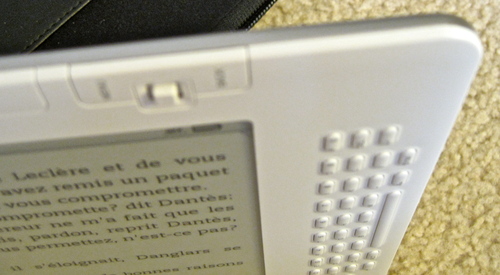
For several days I've already been enjoying a great Christmas present: a new Kindle DX! Despite being early, it didn't come a moment too soon. For quite a while, I've been hoping for a better way to read to help with my aging eyesight and tired eyes, and partly because the amount of reading I have to do is increasing. Most reading related to my work these days is articles in PDF format, and up until now, no device displayed PDF's well except a computer or laptop.
When the Kindle DX came out this year, I waited for several months to see if anyone would come out with a competitor by Christmas, and finally gave in, when the only competing product to appear was the Nook. The price of the DX is too high by several hundred dollars, but it is cheaper than new eyes.
So, I asked for one for Christmas.
Here are my impressions of the Kindle DX so far.
Size and weight
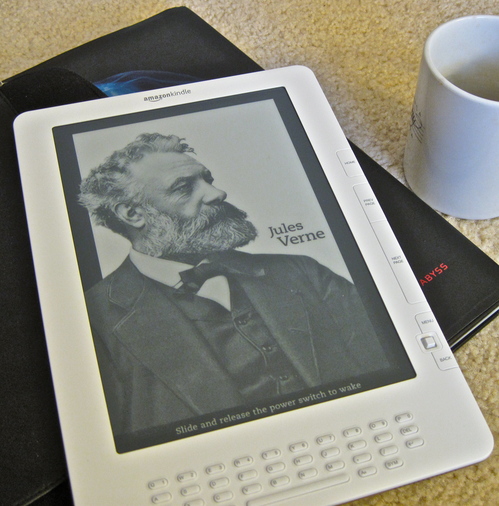
Since you cannot see a Kindle in person without ordering one, you have to depend on the ads to visualize its ergonomic characteristics. I found it difficult to get an idea of the size and feel of it from Amazon's ads. I thought it looked kind of weird - that turns out to be less so up close. In the following two images I've attempted to put the Kindle DX into scale for you with common objects. [Click the images for an enlarged view.]
Here it is next to a coffee mug (The Jules Verne picture is part of a screensaver, by the way)
...and next to a standard paperback book.
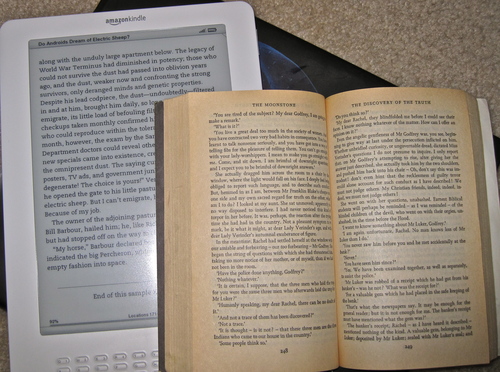
Nor do Amazon's ads convey how thin it is - it's very thin and light! I'd say it weighs about the same as an empty ceramic coffee mug. Much MUCH lighter than a netbook or notebook computer.
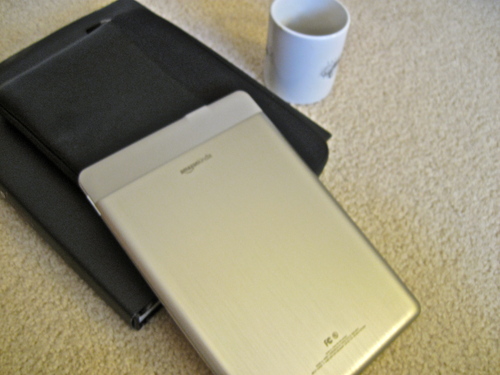
The back is a rounded brushed-aluminum somewhat reminiscent of my first-gen iPhone, but much larger.
Readability
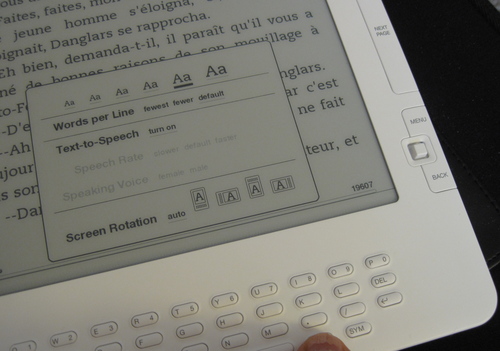
Reading on the Kindle is a pleasure, as long as there is enough light. Because it is electronic I do find myself wishing it had a backlight, and also that the screen gamma or whiteness were adjustable, but it's no worse than a book. What is far better than a book is that the text can be enlarged. PDF's are the exception. They enlarge to fit the width of the screen, so they come in two sizes - whatever fits the vertical width and whatever fits the horizontal width. I've found that if the PDF is set in two columns, vertical mode can be pretty hard to read, so I spend a lot of time in horizontal mode. But books are wonderful. The font is quite readable, and changing text sizes is easy. That alone can make a huge difference.
Navigation
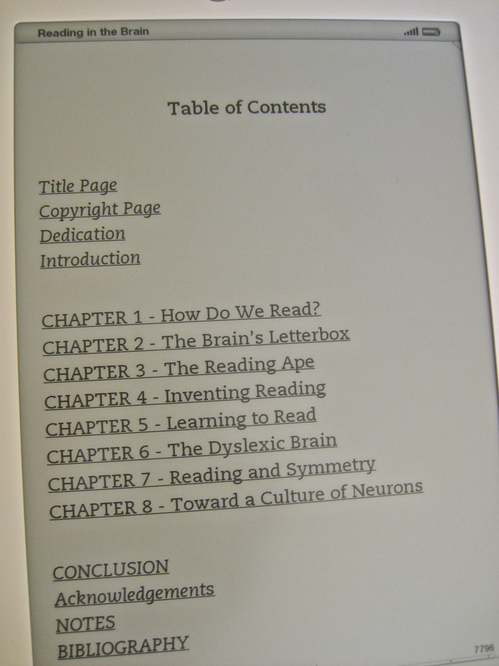
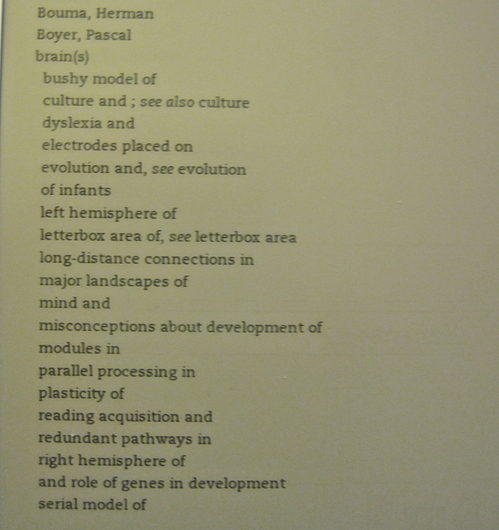
It is not easy to skim through a book using the Previous and Next buttons - the screen refresh is too slow. Instead, I find myself using the table of contents if there is one, or location numbers, if not. Books that have been typeset for the Kindle have clickable tables of contents:
Books downloaded from Gutenberg in text format or in other formats have to be navigated through in other ways. PDFs lose their bookmarking features, as far as I can tell. Scrolling quickly through a PDF is not possible - the previous and next buttons or page numbers must be used to navigate.
Many of the navigation functions are accessed from the "Menu" button. From within a book, this menu allows access to the Table of Contents and to the Go to Location function which allows you to specify digital "page numbers" to jump to. Location numbers remain fixed even when the text size changes.
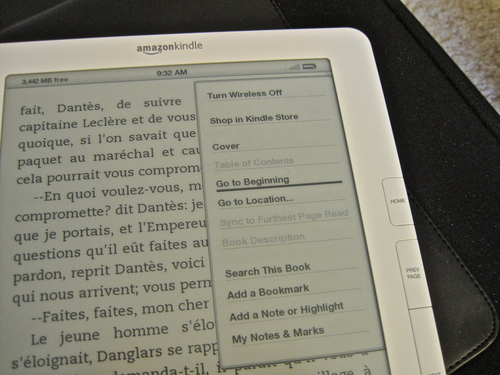
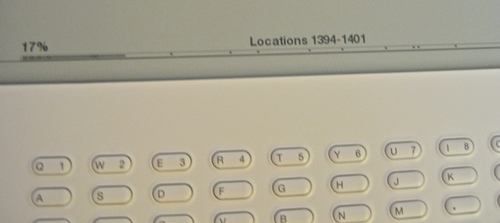
The Go to Location function could use some work. When selected, a Go To box comes up at the bottom of the screen, so you can enter a location number. The problem is that you must hit the "alt" key before each digit, and there can be 4-5 digits in the location numbers in a modest-sized book. It's kludgy and slow to enter them and not terribly intuitive to figure out what number is close to where you want to go. It would be much easier to simply use the 5-way controller to move back and forth across the progress bar. Even better would be if while you were scanning across the bar, a few words from the top of the page or the title of the chapter would show up.
I recently read a review of either the Kindle or the Nook - I forget which - which complained that books lost their human-created index. Not so with the books I am looking at.
I've tried both using the email-to-Kindle and USB to transfer files. Both work well, but you are charged 15 cents to send direct to the Kindle. PDFs can be transferred without converting or converted by sending them to your kindle address. If you don't want to pay the fee, PDFs can be converted, then downloaded and transferred for free.
fren
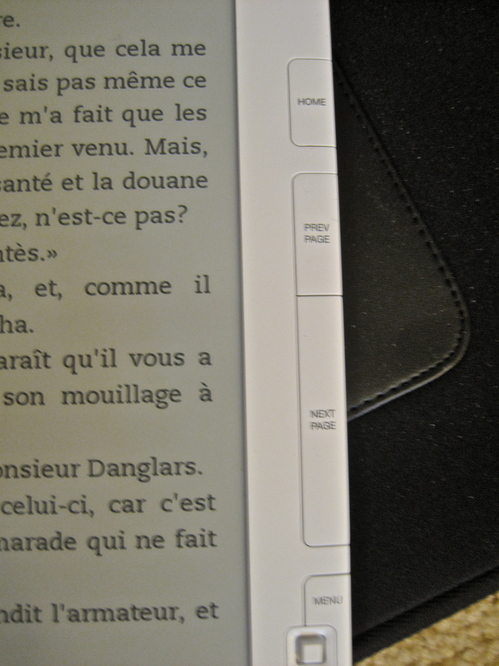
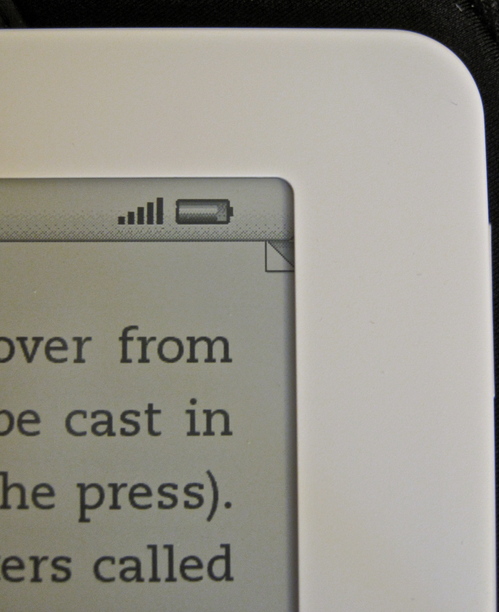
ch dictionary. can only have onething open at once
slow changing
not a problem when I am reading
web is OK, sort of like the old blackberry web.
images in books don't spread out to fill page -
lack of smooth magnification to any zoom
some characters don't come out - they show up as questionmarks.
no indexes for pdf's
no smooth zoom for pdf's - only 2 magnifications
Kindle's Personal Document Service (via Whispernet) allows you to e-mail approved files to your Kindle's e-mail address. Then, Amazon can download the file(s) wirelessly in a Kindle-compatible format to the device(s) for a small fee. To avoid a fee, or if you're not in wireless range, you can send an e-mail to "name"@free.kindle.com and download the files via USB in a Kindle compatible format to the device(s).
Here's a list of the file formats that can be e-mailed to and viewed on Kindle:
Microsoft Word (.DOC)
Structured HTML (.HTML, .HTM)
RTF (.RTF)
JPEG (.JPEG, .JPG)
GIF (.GIF)
PNG (.PNG)
BMP (.BMP)
PDF (.PDF): Look below for details.
Microsoft Word (.DOCX) is supported in our experimental category.
The above file types can also be combined in a compressed ZIP (.ZIP) file. ZIP files are automatically opened up by the conversion service, converted to the Kindle format, and sent to your Kindle or computer as specified.
The experimental category represents the features we are working on to enhance the Kindle experience even further. You can e-mail your PDF or DOCX files wirelessly to your Kindle. Keep in mind that some complex PDF and DOCX files might not format correctly on your Kindle.
In landscape orientation, white margins of PDF documents are automatically cropped to maximize the amount of content shown on the screen.
Convert PDF Files to Kindle Format