Part II: How the game is built
The environment: Our computing environment is fairly uniform. For better or worse, it is 100% PC. The JCAHO Trivia game is only accessed from within the work environment, so no home computers are involved. The internal network is very fast, so huge graphics are no problem.
Login and security: Questionmark Perception needs at least two pieces of information to log in a user - a username and a group. We determined early on that each team would be entered into the system as a group in Perception, since team scores could easily be tracked by group. Perception can only receive these two variables from the login page. In a normal Perception setup, a participant would type in their username (and password if required) and select a group from a drop-down list of groups. However we realized we'd have to break this process up into two pieces, since most people would not know what group (team) they were in. So we created a pre-login team chart page.
The fact that most shaped how we handled security was that drawing up accurate and complete team rosters was impossible. Neither could we make use of LDAP or any other directory system for various reasons. This meant that we could not authenticate to any list, so security had to be handled by restricting access to the server by IP.
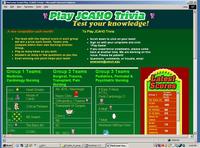
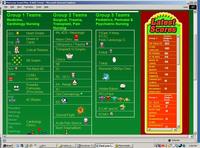
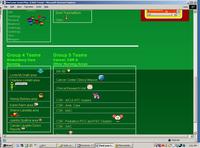
The team chart/Entry page
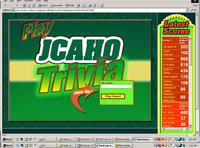
To complete the login process, the player types their username into the login page and hits the "start game" button.
Your Game in Lights! The Perception login page has been dressed up to look as glitzy as possible.There are glowing transparencies, animated running lights, and wild fluorescent colors. For inspiration I visited game sites and online casino sites, which tend to use elaborate graphics.
Stylesheet magic: The login page sniffs the screen resolution of the monitor it is being viewed on, and changes layout completely if on a low resolution monitor.
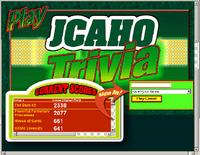
High resolution version - - - Low resolution version
This is done by swapping style sheets. Not only fonts and colors, but images can be entirely swapped and moved around using style sheets , since the images are used as background-images in absolutely positioned divs. For example, the position and look of the scoreboard are determined by the class ".scoreboard." (Note: I used classes rather than ID's in my CSS stylesheets because Questionmark sees # symbols as comments, although I later realized I could have done ID's by using a double ## symbol which would be interpreted correctly.)
Scoreboard style for narrow screens, where the scoreboard is short and wide, and positioned at the bottom left corner:
Not only does the whole login page change layout, but the red score chart which is actually a separate .ASP page displayed within an iFrame inside the scoreboard graphic, also senses the resolution of the monitor and swaps styles as well, switching from a tall narrow format to a wider format.
The scoreboards are .ASP pages so that they can dynamically update the scores from the database as people move through the game. They were mostly coded in Dreamweaver, but I had a programmer help write the queries to work with SQL server. All scoreboard pages use the same queries, which are contained in an include, named "SQLqueries.asp".
This is the .asp code for the size-swapping scoreboard:
This is the include file "SQLqueries.asp":
It was necessary to use a separate page inside an iFrame rather than simply making the ASP code part of the various pages, since the directory that Perception uses to generate its pages is not actually web-enabled. It generates whatever page is needed from a series of templates and spits it out into a temp directory.
So I put the scoreboard in the /em/ directory which is normally used only for administrative and reporting pages on the server. That directory is web and .asp enabled, and I tend to use it for everything, including the images needed. I've found it's more reliable to put resources there than using the various resource directories provided by Perception. For whatever reason, images and other elements I put there don't always show up. Since there was no security issue with putting the images out on the /em/ directory in this case, I used that method to keep everything organized in one folder for the game. The only parts that could not go there were the login template (/format/jcahoTrivia.login) and the game template (layout/templates/qxqonjcahoTrivia.template).
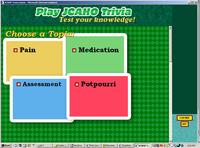
Upon logging in, the player is confronted with the Choose A Topic screen. On opening, this screen also senses the screen resolution, and although the layout doesn't change, it stretches to fill the screen, and moves to the 0,0 point (top left corner) on the monitor.
The code for this script is:
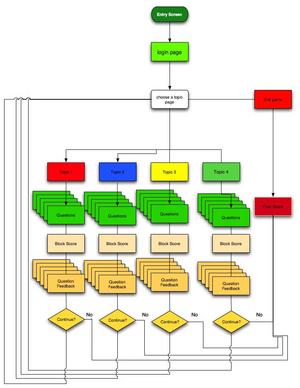
The "Choose a Topic" screen is actually a multiple choice question which sits in its own block in the game. It is the first screen of the game, and the game returns you to it after every block of 5 questions to decide what to do next.
Game structure
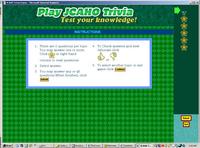
Instructions
 Before a question is answered, its daisy symbol is an outline.
 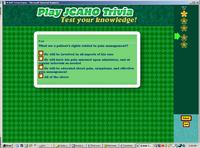 Once answered, the daisy for each question fills in with yellow.
 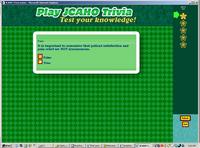 After answering 5 questions, randomly selected from a pool of about 100, the player clicks "continue" and sees their score for that topic.
 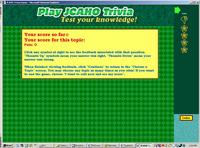 After viewing the score for the topic, the player can view detailed feedback about each question in the topic by clicking again on the daisies.
 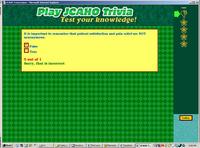 Final score
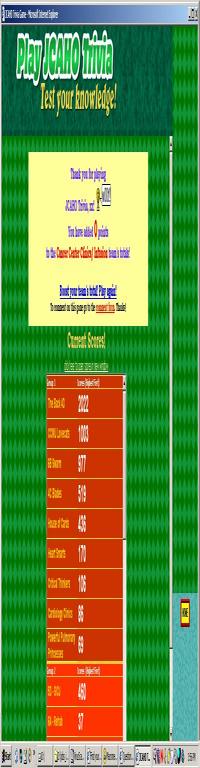 Clicking on the link will open the scoreboard in it's own window.
 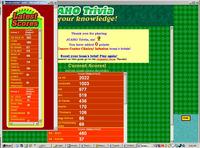 If people want to save a snapshot of their teams scores, they can right-click their group's table in the scoreboard - and select "save as Excel spreadsheet".